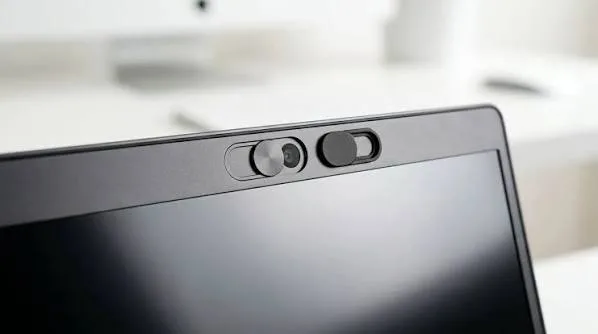
Many modern laptops include a small physical cover over the webcam. You may have noticed it but wondered what it actually does. This feature is called a webcam privacy shutter, and it gives you a simple way to block the camera when you are not using it.
For students, remote workers, business owners, and anyone who regularly joins video calls, a webcam shutter can provide an extra layer of privacy.
What Is a Webcam Privacy Shutter?
A webcam privacy shutter is a small physical slider or cover built into the laptop’s camera area. You can move it across the webcam when you do not want the camera to see anything.
Unlike software settings, the shutter physically blocks the camera lens. Therefore, you do not need to depend entirely on Windows settings to cover the camera.
Why Does Webcam Privacy Matter?
Your laptop camera can be useful for meetings, online classes, interviews, and video calls. However, you may not want the camera exposed whenever you are not using it.
A physical shutter gives you an easy visual indication that the camera is covered. This can reduce the chance of accidentally leaving the camera exposed during everyday laptop use.
Is a Webcam Shutter the Same as Turning Off the Camera?
No. Turning off a webcam through Windows or an application changes how the software accesses the camera. A physical shutter blocks the lens itself.
Both approaches can complement each other. You can disable camera access through software and close the physical shutter when you want additional privacy.
Who Should Consider a Laptop With a Webcam Shutter?
- Remote workers
- Students taking online classes
- Professionals attending video meetings
- Business owners
- Journalists
- People who frequently use video conferencing
What If Your Laptop Has No Shutter?
You can still manage webcam privacy without a built-in shutter. Windows provides camera privacy controls that allow you to manage which applications can access the camera.
However, you should avoid placing anything that could damage the screen over the webcam. A built-in shutter remains the cleaner solution.
How to Check Whether a Laptop Has One
Look closely at the webcam area above the display. Some laptops have a small slider beside the camera. Moving the slider should cover the lens.
If you are buying online, check the manufacturer’s specifications or product photographs. You can also ask the seller to confirm whether the specific model includes a physical webcam shutter.
Webcam Features to Compare
| Feature | Why It Matters |
|---|---|
| Physical Shutter | Provides an additional layer of camera privacy |
| HD Webcam | Provides clearer video during calls |
| Microphone | Allows you to communicate during meetings |
| Camera Privacy Controls | Lets you manage application access |
Check the Webcam Before Buying a Used Laptop
If you are buying a UK used laptop, test the webcam before making payment. Open the Windows Camera app and confirm that the camera produces a clear image.
Also check whether the physical shutter moves correctly. A damaged slider may prevent the camera from being fully uncovered or covered.
Related PSERO Guides
- How to Test a Used Laptop Before Buying
- How to Verify Laptop Specifications Before Paying
- How to Choose the Right Laptop for Your Budget
- How to Compare Two Laptops Before Buying
- What Laptop Specifications Matter Most?
Shop Laptops at PSERO
Useful Official Resources
For information about managing camera permissions in Windows, visit Microsoft Support. You can also check individual laptop features on the official websites of HP, Dell, and Lenovo.
Final Verdict
A webcam privacy shutter is a small feature, but it can make a useful difference. It provides a simple physical way to cover your camera whenever you are not using it.
You do not need a webcam shutter to own a secure laptop. Nevertheless, it is a useful feature for anyone who regularly uses video calls or wants an extra layer of privacy.