Your laptop webcam may technically work, but that does not mean it produces a good image. Older business laptops often come with basic cameras, and some models struggle in rooms with poor lighting.
If your phone has a better camera, you may already have a simple upgrade sitting in your pocket. With the right software and connection, a smartphone can work as a webcam for video meetings, online classes, interviews and live calls.
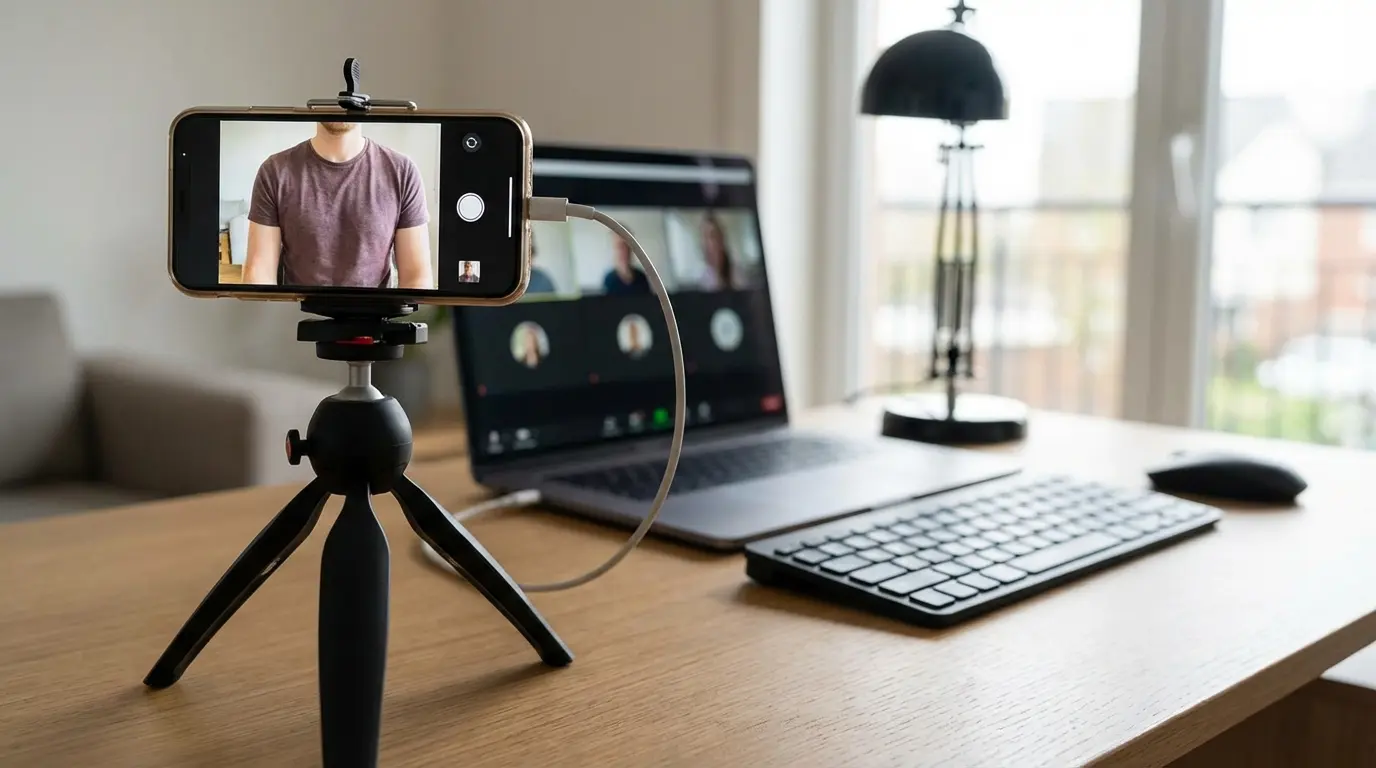
Why Use a Phone Instead of the Built-In Webcam?
Modern smartphones often have better cameras than older laptop webcams. A phone may offer higher resolution, better autofocus and improved image processing.
That difference becomes noticeable during Zoom meetings, Microsoft Teams calls, online interviews and virtual classes.
A phone can also give you more flexibility because you can position it independently instead of being limited to the laptop’s screen angle.
External webcamDesigned specifically for computersRequires another purchase
| Option | Typical advantage | What to consider |
|---|---|---|
| Built-in webcam | Simple and ready to use | Quality varies widely |
| Phone camera | Often better image quality | Requires setup and a stable mount |
What Do You Need?
The exact requirements depend on the method you choose, but most setups need:
- A smartphone with a working camera
- A Windows laptop
- A stable internet or USB connection
- Compatible webcam software or built-in support
- A phone stand, tripod or secure mounting position
- Enough battery power for the phone
If you plan to use the phone for a long meeting, keep it connected to power where possible. Video streaming can consume battery faster than ordinary phone use.
Can Windows Use an Android Phone as a Webcam?
Depending on the phone, Android version and Windows setup, you may be able to use the phone through Microsoft’s phone integration features or through third-party webcam applications.
Microsoft has continued expanding Android integration with Windows, so supported devices can offer features that go beyond simple file transfers.
Check Microsoft’s current Phone Link support resources for compatibility information before relying on a specific feature.
Using a Dedicated Webcam App
Another common method involves installing a webcam application on both the phone and laptop.
The phone captures the video while the computer receives the camera feed through USB or a network connection. The exact setup varies between applications.
USB usually provides a more direct connection. Wi-Fi can be more convenient because it avoids a cable, but network quality becomes part of the equation.
USB vs Wi-Fi for Phone Webcam Use
| Connection | Advantages | Possible drawback |
|---|---|---|
| USB | Direct connection and usually stable | Requires a suitable cable |
| Wi-Fi | No camera cable needed | Network quality can affect the video |
| Bluetooth | Useful for some accessories | Usually not the best choice for high-quality video |
For an important interview or business meeting, a wired connection can reduce the number of things that can go wrong.
How to Position the Phone Properly
Buying a better camera will not help much if you point it at the ceiling or place it below your chin.
Position the phone approximately at eye level. Keep the camera lens close to the height of your laptop display or slightly above it.
Place a light source in front of you rather than directly behind you. A window behind your head can make your face appear dark.
Use a stable stand or tripod. Holding the phone in your hand during a professional meeting will make the video shake and quickly become uncomfortable.
Does the Phone Camera Need to Be 4K?
No.
A good 1080p feed can already look excellent for most video meetings. Lighting, camera positioning, focus and network quality can have a bigger impact than simply increasing resolution.
For ordinary Zoom calls, online classes and work meetings, chasing extremely high resolution may provide little practical benefit.
What About Audio?
Using your phone as a webcam does not automatically mean you should use its microphone.
Your laptop microphone, headset or external microphone may produce better results depending on the environment.
Echo can also become a problem when the microphone and speakers are positioned too close together. A headset can simplify the setup.
If you want to understand what makes a laptop microphone perform well, see our guide to laptop microphones and microphone arrays.
Can You Use an iPhone as a Laptop Webcam?
Yes. Apple’s Continuity Camera feature allows supported iPhones to work as cameras for compatible Mac systems, while Windows users can use other supported methods and applications.
The exact capabilities depend on the operating system, phone model and software involved.
Apple provides the current requirements and setup instructions through its official Continuity Camera support page.
What If the Laptop Does Not Detect the Phone Camera?
Start by checking the connection method.
- Confirm that the phone and laptop software are compatible.
- Reconnect the USB cable if you are using one.
- Try another USB port.
- Check whether the required phone application is running.
- Allow the necessary camera and network permissions.
- Restart the phone and laptop.
- Check whether another application is already using the webcam.
If Windows itself has hardware detection problems, Windows Device Manager can help identify missing or malfunctioning devices.
Watch Out for Phone Overheating
Video streaming keeps the phone camera active and requires continuous processing. Long meetings can make a smartphone warmer than normal.
Remove thick cases if the phone becomes unusually hot and keep it somewhere with reasonable airflow.
Do not place the phone directly on a heat-producing laptop surface for hours.
What About Internet Data Usage?
A phone webcam setup can use significant data when the video travels over Wi-Fi or mobile data.
This matters particularly when you rely on a Nigerian mobile data plan for remote work or online meetings.
USB connections can reduce dependence on the phone’s mobile hotspot when the webcam application supports direct USB video transmission.
Phone Webcam vs Buying a New Laptop
A poor webcam does not automatically mean you need a new laptop.
If the machine handles your work well but has a weak camera, using a phone or purchasing an affordable external webcam may be a more sensible solution.
A laptop upgrade becomes more reasonable when the computer also struggles with storage, memory, processor performance, ports, battery condition or other essential functions.
Before buying a used machine, our UK-used laptop inspection checklist can help you test the important components.
Who Should Consider a Phone Webcam?
Remote Workers
A better camera can improve professional meetings without requiring an expensive camera upgrade.
Students
Online classes and virtual presentations can benefit from clearer video, especially when the laptop’s built-in webcam is poor.
Freelancers
Client calls and interviews often benefit from a cleaner image and better camera positioning.
Content Creators
A smartphone may provide a useful temporary camera for live sessions, tutorials and demonstrations.
Common Mistakes
- Placing the phone too low
- Pointing a bright window directly behind you
- Using an unstable stand
- Ignoring phone battery level
- Using mobile data unnecessarily
- Running several camera applications at once
- Assuming higher resolution automatically means better video
- Leaving sensitive camera permissions enabled permanently
Final Advice
A weak laptop webcam does not have to ruin your next video meeting. Your smartphone may already provide a significant improvement if you position it correctly and choose a suitable connection method.
USB is usually a good choice when stability matters, while Wi-Fi offers more freedom from cables. Either approach works best when the phone has adequate battery power, the network is reliable and the camera sits at a sensible height.
Before spending money on a new laptop simply because its webcam looks poor, check whether the rest of the machine still meets your needs. Sometimes the smartest upgrade is already in your pocket.