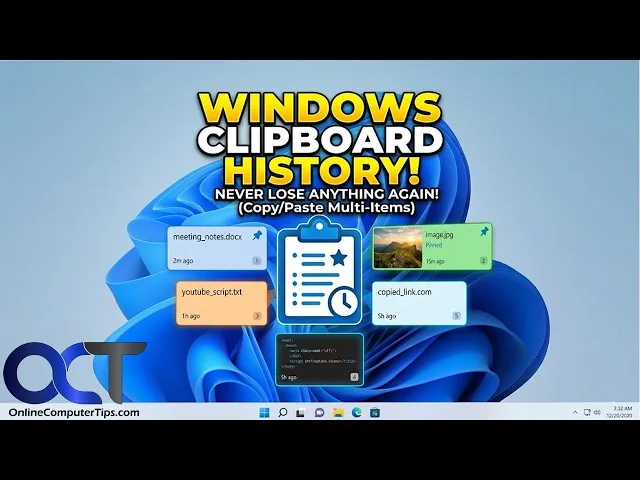
You copy a phone number from WhatsApp, switch to your browser, copy an email address, then return to your document and realise you just replaced the first item. Normally, Windows only keeps your most recent copied item available for pasting.
Clipboard History solves that problem. Instead of keeping only one copied item, Windows can store several recent text snippets, images and other supported content so you can choose what to paste.

What Is Windows Clipboard History?
Clipboard History is a Windows feature that lets you access multiple recently copied items instead of relying only on the last item you copied.
Press Windows key + V to open the Clipboard panel. If the feature has not been enabled, Windows will prompt you to turn it on.
Once enabled, copying another item does not immediately erase the previous entry from the history. You can return to the panel and select the item you need.
How to Turn On Clipboard History
Open Settings and go to:
System > Clipboard
Find Clipboard history and turn it on.
After enabling the feature, press Windows + V to open the clipboard panel.
You can then copy different pieces of information and switch between them when needed.
How Clipboard History Makes Everyday Laptop Work Easier
Consider a simple office task. You need to enter five product names into a spreadsheet, but the information comes from different pages.
Instead of constantly switching between windows, you can copy each item and retrieve the required entry from Clipboard History when you need it.
The same approach can help with:
- Phone numbers
- Email addresses
- Website addresses
- Product names
- Short paragraphs
- Frequently reused text
- Images supported by the clipboard
- Research notes
How to Paste an Older Copied Item
Place your cursor where you want the information to appear.
Press Windows + V. Windows will display your recent clipboard items.
Select the item you want, and Windows will paste it into the active application.
This small feature can save considerable time when you work with several pieces of information at once.
Can You Keep Important Items in Clipboard History?
Yes. Windows allows supported clipboard entries to be pinned.
A pinned item can remain available after you clear ordinary clipboard history. That makes the feature useful for text that you regularly reuse.
You might pin a standard business address, frequently used response or another non-sensitive piece of information.
Be Careful With Passwords and Sensitive Information
Clipboard History is convenient, but convenience should not replace security.
Avoid treating the clipboard as a permanent password manager. Passwords, banking information, authentication codes and other sensitive details deserve proper security tools.
If you copy sensitive information temporarily, clear it when you finish. Microsoft provides additional information about Windows features and settings through its official Windows Support resources.
How to Clear Clipboard History
You can clear the clipboard from Windows settings.
Go to Settings > System > Clipboard and look for the option to clear clipboard data.
You can also manage individual entries from the Clipboard History panel.
Remember that clearing the clipboard does not mean that information has disappeared from every application where you previously pasted it.
What Is Clipboard Sync?
Windows can also provide clipboard synchronisation between supported devices when the relevant Microsoft account and settings are configured.
That can make copying text between compatible Windows devices more convenient.
Syncing clipboard data also introduces a privacy consideration. Information copied on one device may become available on another connected device.
For that reason, review your settings before enabling synchronisation on shared or work-managed computers.
Clipboard History vs Copy and Paste
| Feature | Normal Clipboard | Clipboard History |
|---|---|---|
| Stores recent items | Usually one current item | Multiple recent items |
| Keyboard shortcut | Ctrl + V | Windows + V |
| Useful for repeated copying | Limited | Much more convenient |
| Can pin supported items | No | Yes |
Why Clipboard History May Not Work
Several things can prevent the feature from behaving as expected.
Clipboard History Is Disabled
Check Settings > System > Clipboard first. The feature must be enabled before Windows can maintain the history.
A Work or School Computer Has Restrictions
Some organisations manage Windows features through policies. A company laptop may therefore behave differently from a personal computer.
The Clipboard Service Has a Problem
Temporary Windows issues can affect clipboard functionality. Restarting the laptop may resolve a simple software problem.
The Application Does Not Support the Content
Not every application handles copied text, images or formatting in exactly the same way. If an item behaves differently in one application, test it somewhere else.
Clipboard History for Students
Students often collect information from several sources while writing assignments or preparing presentations.
Clipboard History can make that process easier by keeping recently copied notes available in one place.
It should not replace proper note-taking, though. Save useful research in a document or note application rather than relying entirely on temporary clipboard data.
If you are buying a laptop for schoolwork, our guide to laptops for online classes in Lagos covers other features that matter for everyday student use.
Clipboard History for Freelancers and Business Owners
Freelancers can use Clipboard History when working with repeated website addresses, customer details, project notes and short pieces of text.
Business owners may also find it useful when moving information between spreadsheets, email, browser tabs and accounting applications.
The feature becomes especially valuable when the laptop is handling several windows simultaneously. An SSD and adequate RAM can also make frequent multitasking feel smoother.
For more advice on choosing a machine for business work, see our guide to laptops under ₦300,000 for business and freelancing in Nigeria.
Clipboard History Is Not a Backup System
One common mistake is assuming that anything copied will remain available forever.
Clipboard History is designed for convenience, not permanent storage. Entries can disappear when history is cleared or depending on how Windows manages clipboard data.
Keep important information in the application where you actually intend to store it.
Quick Clipboard Shortcuts to Remember
| Shortcut | Action |
|---|---|
| Ctrl + C | Copy selected content |
| Ctrl + X | Cut selected content |
| Ctrl + V | Paste the current clipboard item |
| Windows + V | Open Clipboard History |
Final Advice
Clipboard History is one of those Windows features that many laptop users overlook until they discover how useful it can be.
Pressing Windows + V gives you access to recent copied items without forcing you to repeatedly switch between applications and copy the same information again.
Use the feature for ordinary work, pin genuinely useful non-sensitive items, and keep passwords and confidential information out of your clipboard whenever possible.
For students, freelancers, office workers and business owners, small productivity features like this can make an everyday laptop much easier to use. When choosing your next machine, look beyond headline specifications and consider how comfortably it will handle the actual work you do.