When a laptop suddenly becomes slow, many people immediately assume that the computer needs more RAM or a faster processor. Sometimes that is true. In other cases, a single program, background process, Windows service or browser tab is responsible.
Windows already includes a useful tool for finding these problems: Task Manager.
It can show what is using your laptop’s processor, memory, storage, network connection and graphics resources. Learning how to read it can save you from guessing when something starts behaving strangely.

What Is Windows Task Manager?
Task Manager is a built-in Windows utility that displays information about running applications, background processes and system resource usage.
You can also use it to close an unresponsive application, manage startup programs and inspect basic performance information.
Press Ctrl + Shift + Esc to open Task Manager directly. You can also right-click the Start button and select Task Manager.
What Can You See in Task Manager?
The main sections provide different types of information about your laptop.
- Processes
- Performance
- App history
- Startup apps
- Users
- Details
- Services
The exact layout can vary slightly depending on your Windows version, but the basic purpose remains the same.
The Processes Tab
Processes is one of the most useful sections when a laptop suddenly feels slow.
It shows running applications and background processes together with resource usage. You can usually see CPU, memory, disk and network activity for individual processes.
Clicking a column heading can sort the list by usage. For example, selecting CPU can help identify which process is currently consuming the most processor resources.
How to Find a CPU Problem
If the laptop feels slow, check the CPU column.
A program temporarily using a large amount of CPU is not automatically a problem. Video editing, software installation, Windows updates and other demanding tasks can naturally produce high processor usage.
The more useful clue is sustained high usage when the laptop is supposedly doing very little.
If one unfamiliar process remains near the top for a long time, investigate what it is before ending it.
Why 100% CPU Usage Is Not Always Bad
Seeing 100% CPU usage can look alarming, but the number alone does not prove that the laptop is faulty.
A demanding task can legitimately use all available processor resources for a period of time. Rendering a video, compressing files or installing software are examples.
The situation becomes more interesting when high CPU usage remains for an extended period while no demanding task is running.
How to Check RAM Usage
Memory usage is shown in Task Manager under the Memory column and in the Performance section.
If memory usage stays very high, Windows may rely more heavily on virtual memory. That can make multitasking feel slower, particularly when many applications and browser tabs are open.
Before concluding that the laptop needs more RAM, check what is actually consuming the memory.
A browser with dozens of tabs, a large application or several background programs can make a substantial difference.
For a deeper explanation of laptop memory, read the PSERO guide to laptop RAM.
How to Check Disk Usage
The Disk column shows how much activity is currently taking place on a storage drive.
A laptop showing 100% disk activity is not necessarily suffering from a bad SSD or HDD. Windows updates, antivirus scans, file transfers and application loading can temporarily create heavy storage activity.
On older systems using mechanical hard drives, sustained disk activity can be particularly noticeable because HDDs are much slower than modern SSDs.
If you are buying a used laptop, combine Task Manager observations with a proper storage health check instead of judging the drive solely from the percentage shown in Task Manager.
What Does Network Usage Mean?
Task Manager can also show network activity for applications and processes.
This can help you identify which program is transferring data when your internet connection appears unusually busy.
For example, Windows Update, cloud-storage applications or a browser download can consume bandwidth in the background.
If your laptop has a broader connection problem, use the troubleshooting steps in the PSERO laptop network problems guide.
How to Check GPU Usage
Modern versions of Task Manager can display GPU activity in the Performance section and, where supported, provide GPU usage information for individual applications.
This can be useful when a game, video editor or graphics-intensive application is running.
A high GPU percentage during a demanding graphical task is generally expected. The more important question is what application is using the graphics processor and whether the performance matches what you expect from the laptop.
For a broader explanation of integrated and dedicated graphics, see the PSERO laptop graphics guide.
What Is the Performance Tab?
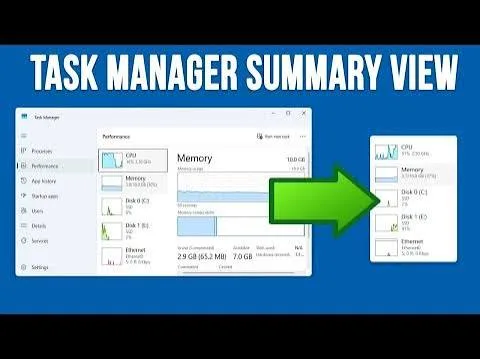
The Performance section provides a live overview of major system resources.
You can inspect CPU, memory, disks, network adapters and GPU activity. Depending on the hardware and Windows version, additional information may also be displayed.
This section is particularly useful when diagnosing a slow laptop because it lets you watch resource usage while the problem is happening.
Startup Apps Can Slow Down Your Laptop
Windows can automatically launch certain applications when you sign in.
Some startup applications are useful. Others may simply consume resources while running in the background.
Task Manager’s Startup apps section lets you see which programs are configured to start automatically and provides information about their startup impact.
Disabling unnecessary startup programs can reduce the number of applications competing for resources immediately after Windows starts.
Do Not Disable Everything
A common mistake is to open Startup apps and disable every item that looks unfamiliar.
Some entries are connected to important hardware features, security software or applications you actually use.
Instead, identify each program first. If you do not need it to launch automatically, disabling its startup behaviour may be reasonable.
Ending a Task
Task Manager can force-close an application that has stopped responding.
Select the application under Processes and choose End task.
Use this option carefully. Unsaved work can be lost when an application is terminated.
Ending random Windows processes can also create instability, so do not terminate a process simply because its name looks unfamiliar.
How Task Manager Helps When Buying a Used Laptop
Task Manager can be useful during a laptop inspection because it gives you a quick look at what Windows actually sees.
Check the processor and memory information, look at storage activity and confirm that the system is not constantly being overwhelmed by an unexplained background process.
It should not replace physical testing, BIOS checks or storage diagnostics, but it can provide another useful layer of information.
Task Manager Clues and What They May Mean
| What You See | Possible Explanation |
|---|---|
| High CPU usage | Demanding application, update, background process or software problem |
| High memory usage | Many applications, browser tabs or memory-heavy software |
| High disk activity | Updates, scanning, file operations or storage-related activity |
| High network activity | Downloads, updates, cloud synchronisation or other data transfers |
| High GPU usage | Gaming, video editing or another graphics-intensive workload |
| Many startup applications | More programs loading during Windows startup |
Why Task Manager Should Not Be Used Alone
Task Manager is excellent for observing current activity, but it does not provide a complete diagnosis for every laptop problem.
A laptop with a failing SSD can sometimes appear normal until the drive encounters an error. Similarly, high CPU usage may be caused by software rather than a defective processor.
Temperature, storage health, malware, Windows configuration and hardware faults can all require additional investigation.
Task Manager vs Performance Mode
Windows laptops can also offer different performance or power modes. Those settings influence how aggressively the system balances performance and energy consumption.
If you want to understand that side of Windows, read the latest PSERO laptop guides alongside this Task Manager guide rather than assuming high resource usage always means something is wrong.
Common Task Manager Mistakes
- Assuming 100% CPU usage automatically means the processor is bad.
- Assuming high memory usage automatically means RAM has failed.
- Ending unfamiliar Windows processes without checking them.
- Disabling every startup application.
- Judging SSD health from disk percentage alone.
- Ignoring what was happening on the laptop when the usage increased.
- Using third-party “optimizer” software instead of investigating the actual cause.
A Simple Task Manager Troubleshooting Method
- Open Task Manager.
- Check the Processes tab.
- Sort by CPU usage.
- Check memory usage.
- Check disk activity.
- Look at network activity if internet usage is suspicious.
- Open Performance and inspect the affected component.
- Check Startup apps for unnecessary programs.
- Identify the cause before closing or disabling anything.
This method is much safer than randomly deleting applications or changing Windows settings.
Final Thoughts
Task Manager is one of the simplest ways to understand what your laptop is doing at a particular moment.
Instead of guessing why Windows feels slow, you can check which resources are being used and which applications are responsible. That information makes troubleshooting much more logical.
For students, office workers, freelancers, gamers and laptop buyers, learning the basics of Task Manager is a useful Windows skill. It can help you spot unnecessary startup programs, investigate performance problems and understand how your laptop behaves under different workloads.
If you are looking for a laptop in Nigeria, visit PSERO LAPTOP for available UK-used and brand-new laptops and more practical buying guides.