A laptop can have perfectly working hardware and still behave badly because of a driver problem. Wi-Fi may disappear, sound may stop working, the screen may display incorrectly, or Windows may fail to recognise a device properly.
The hardware itself may not be faulty. In many cases, the problem is the software that allows Windows to communicate with that hardware.
That software is called a device driver.

What Is a Laptop Driver?
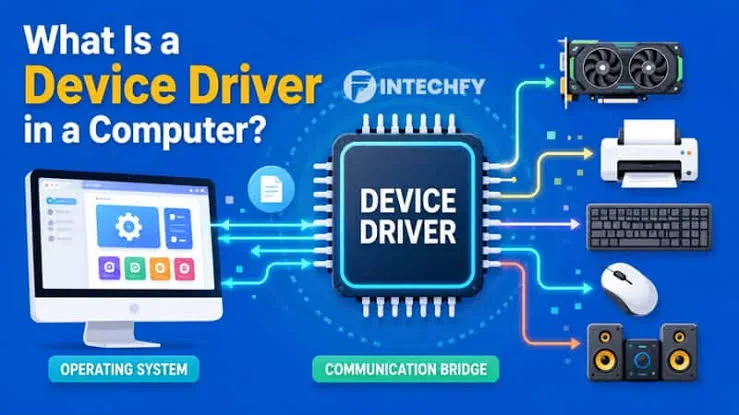
A driver is software that allows the operating system to communicate with a particular hardware component.
Windows does not automatically understand every detail of every laptop component. A suitable driver acts as the communication layer between Windows and hardware such as the graphics adapter, audio controller, Wi-Fi card, touchpad or printer.
Without the correct driver, a component may work with limited functionality or fail to work completely.
Which Laptop Components Need Drivers?
Almost every major hardware component can depend on drivers. Some are installed automatically by Windows, while others may require software from the laptop manufacturer or component maker.
- Graphics hardware
- Wi-Fi adapters
- Bluetooth adapters
- Audio hardware
- Touchpads
- Chipset components
- Card readers
- USB controllers
- Webcams
- Fingerprint readers
- Printers and external devices
Modern Windows installations usually handle many drivers automatically. Even so, manufacturer-specific drivers can sometimes provide better compatibility or additional features.
Why Does a Driver Matter?
Imagine installing Windows on a laptop and discovering that the Wi-Fi option has disappeared. The wireless adapter may still be physically present, but Windows may not have the appropriate driver available.
The same thing can happen with sound. A laptop may have working speakers but produce no audio because Windows is using an incorrect, missing or malfunctioning audio driver.
Graphics drivers are another common example. A laptop can display an image using a basic Windows driver while missing features, performance or proper resolution support provided by the manufacturer’s graphics driver.
What Is Device Manager?
Device Manager is one of the most useful Windows tools for identifying driver and hardware problems.
It displays hardware categories and allows you to see whether Windows has detected particular devices correctly.
To open it, right-click the Start button and select Device Manager. You can then expand categories such as Network adapters, Display adapters, Sound and other devices.
What Does a Yellow Warning Sign Mean?
A yellow warning symbol in Device Manager usually means Windows has identified a problem with that device or its driver.
The exact cause can vary. Windows may be missing a driver, the installed driver may be incompatible, or the device itself may have a hardware problem.
Therefore, a warning symbol should be investigated rather than immediately assuming that the component is dead.
Common Signs of Driver Problems
Driver problems can appear in several ways.
- Wi-Fi suddenly stops working.
- Bluetooth disappears from Windows.
- Speakers produce no sound.
- Screen resolution is incorrect.
- Brightness controls stop working.
- Touchpad gestures disappear.
- External monitors behave incorrectly.
- Webcams are not detected.
- Fingerprint readers stop responding.
- Windows displays an unknown device.
Not every one of these symptoms is caused by a driver. Hardware failure, Windows settings and physical damage can produce similar behaviour.
Should You Download Drivers From Any Website?
No. Random driver websites can create unnecessary problems.
Whenever possible, obtain drivers from the laptop manufacturer’s official support website. Microsoft also provides Windows driver information and update guidance through Microsoft Support.
For a used laptop, identifying the exact model before downloading anything is especially important. A similar-looking laptop can use different hardware revisions and therefore require different drivers.
Why Drivers Are Important on UK-Used Laptops
Older UK-used laptops can sometimes arrive with a fresh Windows installation that does not contain every manufacturer-specific driver.
You might see Windows running normally while Wi-Fi, Bluetooth, audio, brightness controls or special function keys do not work correctly.
That is why driver testing should be part of your inspection rather than something you discover after paying for the laptop.
The PSERO UK-used laptop buying checklist can help you combine software checks with physical hardware inspection.
Windows Update and Drivers
Windows Update can deliver drivers alongside operating system updates. This makes driver installation easier for many users.
However, Windows Update does not necessarily provide every manufacturer-specific utility or the newest driver available directly from the hardware manufacturer.
For normal use, Windows Update is a good starting point. If a component continues to malfunction, check the laptop manufacturer’s support page for the exact model.
What Is a Graphics Driver?
A graphics driver allows Windows and applications to communicate properly with the laptop’s graphics hardware.
Problems with graphics drivers can produce screen flickering, incorrect resolutions, application crashes, graphical glitches or poor performance.
Gamers and creative professionals may pay particular attention to graphics drivers because newer versions can sometimes improve application compatibility and performance.
Before diagnosing a graphics problem, however, check whether the issue occurs only in one application or across the entire Windows environment.
What Is a Chipset Driver?
Chipset drivers help Windows communicate correctly with important motherboard components.
They may not be as visible as graphics or Wi-Fi drivers, but they can affect how different parts of the laptop interact with the operating system.
For that reason, installing the correct chipset-related software can be important after a clean Windows installation, especially on a machine where several devices are showing problems.
Can the Wrong Driver Cause Problems?
Yes. Installing an incorrect driver can create instability or cause a device to behave unexpectedly.
A driver designed for a different hardware revision may not work correctly. In some situations, Windows may also replace an existing driver with another version during an update.
If a device worked properly before an update and immediately developed problems afterward, checking the driver history can be useful.
How to Roll Back a Driver
Windows can sometimes allow you to return to a previous driver version.
Open Device Manager, locate the affected device, open its Properties and check the Driver section. If Windows has retained an earlier driver and the option is available, you may be able to use Roll Back Driver.
This can be useful when a recently installed driver creates a new problem.
Should You Use Driver-Updater Programs?
Be careful with third-party driver-updater applications.
Many users install them because they appear to offer an easy way to update everything at once. However, installing drivers simply because a program says they are outdated is not always necessary.
A stable laptop does not need every component replaced with the newest available driver. When something works correctly, unnecessary driver changes can introduce new problems.
How to Troubleshoot a Driver Problem
A structured approach is better than randomly installing software.
- Identify the affected hardware.
- Open Windows Device Manager.
- Check for warning symbols.
- Confirm the exact laptop model.
- Check Windows Update.
- Visit the manufacturer’s official support page if necessary.
- Download the correct driver for the exact model and Windows version.
- Restart the laptop after installation.
- Test the affected component again.
If the problem remains, consider the possibility of hardware failure instead of repeatedly reinstalling drivers.
Driver Problem or Hardware Problem?
| Symptom | Possible Driver Cause | Other Possible Cause |
|---|---|---|
| No Wi-Fi | Missing or faulty wireless driver | Failed Wi-Fi adapter or disabled hardware |
| No sound | Incorrect audio driver | Speaker or audio hardware failure |
| Wrong screen resolution | Graphics driver issue | Display or cable problem |
| Touchpad not working | Missing touchpad driver | Physical touchpad fault |
| Bluetooth missing | Bluetooth driver problem | Disabled or faulty Bluetooth hardware |
Drivers After Installing Windows
A clean Windows installation can leave a laptop with several generic drivers.
Windows may function normally while some manufacturer-specific features remain unavailable. Function keys, fingerprint readers, advanced touchpad gestures and certain power-management features can depend on additional software.
For this reason, do not judge a laptop only by whether Windows boots. Test the features you actually intend to use.
What Buyers Should Test Before Paying
When buying a used laptop, spend a few minutes checking the important hardware directly.
- Connect to Wi-Fi.
- Test Bluetooth if you need it.
- Play audio through the speakers.
- Test the webcam.
- Move the touchpad and test gestures.
- Check screen brightness controls.
- Connect an external display if practical.
- Open Device Manager and look for obvious warnings.
These checks can reveal problems that a simple inspection of the laptop’s exterior will not show.
If you are buying a laptop for school or remote work, also consider the requirements in the PSERO guide to laptops for online classes in Lagos.
Final Thoughts
Drivers are easy to ignore because they normally work silently in the background. When something goes wrong, however, they can become one of the first places worth checking.
Use Device Manager to identify suspicious devices, rely on official manufacturer sources and avoid changing drivers unnecessarily.
Most importantly, remember that a driver problem and a hardware failure can produce similar symptoms. Proper testing helps separate the two.
For anyone buying a UK-used laptop in Nigeria, checking drivers is a simple step that can prevent unpleasant surprises after purchase. Browse available laptops at PSERO LAPTOP and use the available guides to make a more informed choice.