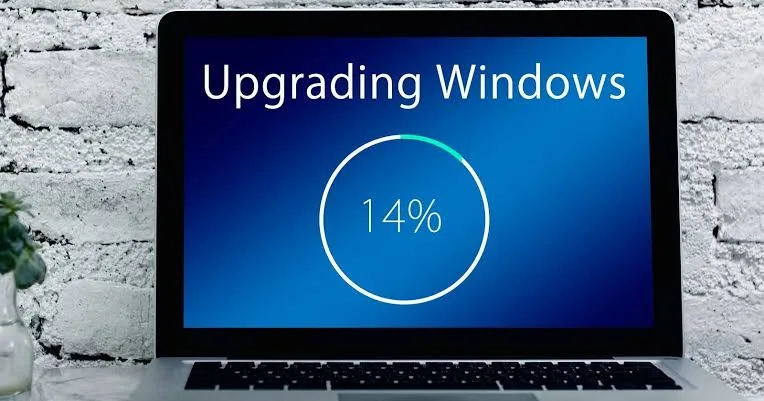
Windows updates are a normal part of owning a laptop, but they can sometimes be confusing. One update may install in a few minutes, while another can take much longer. Occasionally, an update fails, gets stuck or leaves a laptop behaving differently.
Understanding how Windows updates work can help you maintain your laptop without panicking whenever an update notification appears.
What Is a Windows Update?
A Windows update is a software package released by Microsoft to improve or change the Windows operating system.
Updates can include security fixes, bug corrections, performance improvements, new features and compatibility changes.
Not every update has the same purpose. Some are small security fixes, while major feature updates can change parts of the operating system.
Why Does Windows Need Updates?
Software is never completely finished. New security vulnerabilities can be discovered, bugs can appear and compatibility requirements can change.
Regular updates allow Microsoft to address some of these issues and improve the operating system over time.
For laptop owners, keeping Windows reasonably up to date can therefore be an important part of basic computer maintenance.
What Are Security Updates?
Security updates are designed to address vulnerabilities that could potentially be exploited by attackers.
These updates are particularly important because a laptop connected to the internet is exposed to various online threats.
Microsoft provides Windows update information through Microsoft Support, while organisations such as CISA also publish cybersecurity guidance.
What Are Feature Updates?
Feature updates are larger Windows releases that can introduce changes to functionality, settings or the overall operating system experience.
Unlike a small security patch, a major feature update can require more time and storage space.
It is normal for a laptop to restart several times during a significant Windows upgrade.
Why Does Windows Update Take So Long?
Update time depends on several factors.
- Size of the update
- Internet connection speed
- Laptop performance
- Storage speed
- Available storage space
- Number of updates being installed
- Whether Windows needs to process additional system changes
An older laptop with a mechanical hard drive can take considerably longer than a modern machine with an SSD.
That does not automatically mean the older laptop is defective.
Why Does Windows Update Need a Restart?
Some system files cannot be replaced while Windows is actively using them.
A restart allows Windows to complete certain changes before the operating system loads normally.
This is why you may see messages asking you to restart now or schedule a restart for later.
Should You Turn Off a Laptop During an Update?
Avoid deliberately powering off the laptop while Windows is actively installing an update unless there is a serious problem that leaves no reasonable alternative.
Interrupting system changes at the wrong moment can create additional problems.
If an update appears to be taking a long time, give the laptop sufficient time before assuming that it has frozen.
Why Can Windows Updates Fail?
Update failures can have several causes.
- Insufficient storage space
- Corrupted Windows update files
- Internet connection problems
- Driver conflicts
- Damaged system files
- Third-party software interference
- Hardware problems
- Previous update failures
The error message or code displayed by Windows can provide useful clues about the underlying problem.
Storage Space Matters
One of the easiest problems to overlook is insufficient free storage.
Windows needs space to download, unpack and install updates. A laptop with a nearly full drive can therefore encounter problems even when the storage hardware itself is functioning normally.
Before installing a large update, check available storage and remove unnecessary files if necessary.
If you want to understand how different storage technologies affect laptop performance, see the PSERO guide to laptop SSD types.
Can a Slow Laptop Make Windows Updates Worse?
A slower laptop may take longer to process updates, but that does not necessarily mean Windows Update is broken.
Older processors, limited memory and mechanical hard drives can all increase the time required to complete large system operations.
Patience is particularly important when updating an older UK-used laptop for the first time after a clean Windows installation.
What If Windows Update Gets Stuck?
If the update appears stuck, first determine whether the laptop is actually doing nothing.
Look for signs of storage activity, changing progress percentages or other evidence that Windows is still processing the update.
Repeatedly forcing the computer off should not be the first response.
If Windows eventually returns to the desktop but the update repeatedly fails, troubleshoot the update rather than continuing to restart the laptop without a plan.
Restart Before Troubleshooting
A normal restart is a simple first step when Windows Update behaves strangely.
Temporary system processes can sometimes interfere with an installation. Restarting allows Windows to initialise its services again before you try another update.
If the problem continues, move on to more specific troubleshooting.
Check Your Internet Connection
Windows updates are downloaded over the internet, so an unstable connection can interrupt the process.
If downloads repeatedly stop or fail, check whether other websites and applications are also experiencing connection problems.
For broader connection troubleshooting, the PSERO laptop network troubleshooting guide covers common DNS, DHCP and connection issues.
What Are Optional Updates?
Windows can sometimes offer optional updates in addition to the main recommended updates.
These may include certain drivers or other components that are not considered necessary for every computer.
Do not install every optional driver simply because it appears in the list. If your laptop is working correctly, unnecessary driver changes can sometimes create compatibility problems.
Windows Updates and Laptop Drivers
Drivers and Windows updates can interact with one another.
Windows may provide updated drivers for hardware components such as graphics adapters, network devices and other peripherals.
If a device suddenly behaves differently immediately after an update, checking Device Manager and the manufacturer’s driver information can help identify the cause.
The PSERO laptop drivers guide explains how to investigate driver-related problems.
Should You Disable Windows Updates?
Completely disabling Windows updates is generally not a good long-term maintenance strategy.
It may temporarily prevent an inconvenient update, but it can also leave the operating system without later security fixes and improvements.
If an update is causing a specific compatibility problem, investigate that particular issue instead of permanently abandoning updates.
Can Windows Updates Slow Down an Old Laptop?
It is possible for an older machine to feel different after a major operating system update, but the situation is more complicated than simply saying that updates make old laptops slow.
Background services, software compatibility, available storage and hardware limitations can all contribute to performance changes.
If a laptop becomes consistently slow, use Windows Task Manager to determine whether CPU, memory, disk or another resource is being heavily used. The PSERO Task Manager guide can help with that process.
What to Do Before a Major Windows Update
A little preparation can reduce unnecessary problems.
- Back up important files.
- Check available storage space.
- Connect the laptop to reliable power.
- Use a stable internet connection.
- Close unnecessary applications.
- Make sure important work is saved.
A backup is particularly important before major operating system changes. An update is designed to preserve your files, but important data should never exist in only one location.
Windows Update on a Used Laptop
If you buy a used laptop, check Windows Update before considering the machine completely ready for everyday work.
A previously unused installation may have many pending updates. Allowing Windows to complete them can take time, especially on older hardware.
After updating, test important functions such as Wi-Fi, Bluetooth, sound, webcam, touchpad and display brightness.
This approach can reveal whether an update changed the behaviour of a particular component.
Common Windows Update Mistakes
- Turning off the laptop during an active update without good reason.
- Ignoring low storage warnings.
- Assuming every slow update is frozen.
- Installing every optional driver without checking its purpose.
- Disabling Windows Update permanently.
- Failing to back up important files.
- Blaming Windows Update for every laptop performance problem.
A Simple Windows Update Troubleshooting Process
- Restart the laptop.
- Check your internet connection.
- Check available storage.
- Run Windows Update again.
- Record any error code displayed.
- Check Microsoft’s official support information for that error.
- Investigate driver or system-file problems if necessary.
- Back up important data before attempting advanced repairs.
A specific error code is usually more useful than simply saying that “Windows Update is not working.”
Final Thoughts
Windows updates are part of normal laptop ownership. They can improve security, correct software problems and introduce new functionality, but they can also occasionally encounter installation or compatibility issues.
The best approach is not to fear every update or blindly install everything available. Keep enough storage available, maintain backups, use reliable power and internet access, and investigate specific errors when something goes wrong.
For buyers of UK-used laptops in Nigeria, allowing the machine to complete its pending Windows updates is also a useful part of preparing the computer for everyday work.
If you are looking for an affordable laptop for business, school, freelancing or general use, visit PSERO LAPTOP to explore available UK-used and brand-new laptops in Nigeria.