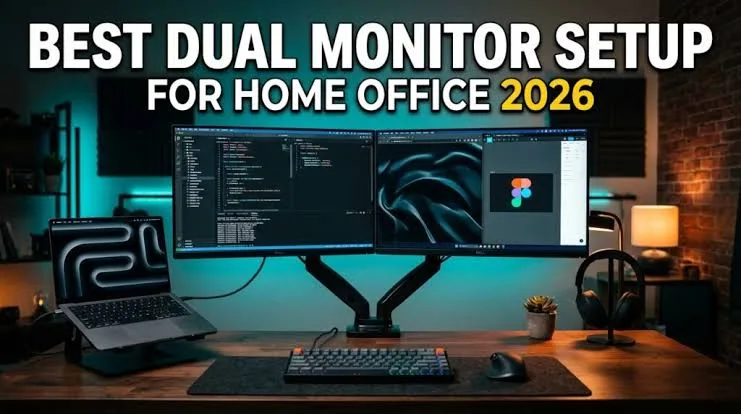
A laptop can become much more useful when you connect it to one or two external monitors. Instead of constantly switching between windows, you can keep different applications visible at the same time.
A two-monitor setup can be particularly useful for programmers, business owners, remote workers, researchers, traders, designers and anyone who regularly works with multiple applications.
What Is a Dual-Monitor Setup?
A dual-monitor setup means using two external displays with your laptop. Depending on your laptop and docking equipment, you may also be able to keep the laptop’s built-in screen active.
This gives you additional screen space for documents, browsers, spreadsheets, communication apps and other software.
Why Use Two Monitors?
The biggest advantage is additional workspace. For example, you could keep your email or communication application on one screen while working on a spreadsheet on the other.
Similarly, a programmer can keep code open on one display and documentation or a browser on the second.
- Less window switching
- More workspace
- Easier multitasking
- Better document comparison
- Convenient research
- Useful for professional workflows
Can Every Laptop Run Two Monitors?
No. The ability to use two external monitors depends on the laptop’s graphics hardware, ports, operating system and the connection method you choose.
Some laptops can connect directly to two displays, while others may require a compatible docking station or adapter.
Check Your Laptop Ports First
Before buying monitors or accessories, inspect the ports on your laptop.
- HDMI
- DisplayPort
- Mini DisplayPort
- USB-C with video output
- Thunderbolt on compatible systems
Do not assume that every USB-C port can send video. Check the specifications of your particular laptop model.
Method 1: Use Two Separate Video Outputs
If your laptop has two suitable display outputs, you may be able to connect each monitor directly.
For example, one monitor could connect through HDMI while another uses USB-C or DisplayPort, provided the laptop supports the required configuration.
Method 2: Use a Docking Station
A docking station can simplify a multi-monitor workstation. You can connect both monitors and other accessories to the dock and then connect the dock to the laptop.
This can be especially convenient if you regularly disconnect and reconnect your laptop.
Method 3: Use a Compatible Display Adapter
Some laptops can support additional displays through compatible USB-based display solutions. However, compatibility and performance vary between technologies.
Therefore, check the laptop and adapter specifications before purchasing.
How to Set Up Two Monitors in Windows
Once the monitors are connected, Windows should detect them automatically in many cases.
Press Windows + P to access basic display options. For more detailed controls, open Windows display settings.
From there, you can arrange the screens and choose whether to duplicate or extend the desktop.
Extend vs Duplicate
| Mode | What It Does | Best For |
|---|---|---|
| Extend | Creates additional desktop space | Multitasking and productivity |
| Duplicate | Shows the same content on multiple displays | Presentations and demonstrations |
For a two-monitor workstation, Extend is normally the more useful option because it gives you separate workspace on each screen.
How to Arrange the Monitors
Windows allows you to tell the system how the physical monitors are positioned. If your second monitor is physically on the left, arrange it accordingly in display settings.
This makes moving the mouse between screens feel natural.
Do Both Monitors Need the Same Resolution?
No. You can use monitors with different resolutions and sizes.
However, matching or reasonably similar displays can provide a more consistent experience. Different resolutions may also cause text and interface elements to appear at different sizes.
Can You Use Two Monitors With a UK Used Laptop?
Yes, provided the laptop supports the required display configuration.
When buying a UK used laptop for this purpose, check the exact model’s ports and graphics capabilities rather than relying only on the processor name.
What If One Monitor Is Not Detected?
Start by checking the physical connections. Make sure the monitor is powered on and set to the correct input.
Next, open Windows display settings and look for the option to detect another display.
If the problem remains, check the cable, adapter and laptop graphics drivers. You may also need a different connection method if the existing hardware does not support the configuration.
Does Two-Monitor Use Slow Down a Laptop?
Connecting external displays can increase the workload on the laptop’s graphics system. The impact depends on the resolution, refresh rate, applications being used and the laptop’s hardware.
Basic office work across two Full HD displays may be relatively easy for many modern systems. High-resolution displays and demanding graphics workloads can require substantially more graphics capability.
What Should You Look for in a Laptop for Two Monitors?
- Multiple supported display outputs
- Compatible USB-C or Thunderbolt connectivity where applicable
- Suitable graphics hardware
- Adequate RAM
- SSD storage
- Good cooling
- Reliable power delivery
Is Two Monitors Better Than One Large Monitor?
It depends on your workflow and available space.
Two monitors make it easy to dedicate each display to a different task. A large ultrawide monitor, however, can provide a continuous workspace without a bezel between screens.
For Nigerian buyers, price and availability may also influence which option provides better value.
Power Considerations in Nigeria
External monitors add to the amount of equipment connected to your workspace. If you regularly work through power interruptions, consider how your laptop, monitors and networking equipment will be powered.
A suitable inverter, UPS or other backup power solution can help maintain your workstation during outages. Make sure any backup system you use is properly sized for the equipment connected to it.
Related PSERO Guides
- How to Connect Your Laptop to a TV or External Monitor
- How to Use a Laptop Docking Station
- What Is a Laptop Refresh Rate?
- HD vs Full HD vs 2K vs 4K Explained
- How to Choose the Right Laptop for Your Budget
Shop Laptops at PSERO
Useful Official Resources
For additional information about connecting external displays in Windows, visit Microsoft Support. You can also check the official specifications of laptops from HP, Dell, and Lenovo.
Final Verdict
A two-monitor setup can turn an ordinary laptop into a highly productive workstation. It is especially useful when your work requires frequent multitasking or comparing information from different applications.
Before buying anything, check the laptop’s exact display capabilities. The right combination of ports, graphics hardware, monitors and a compatible dock or adapter can give you a flexible desktop setup without giving up the portability of your laptop.