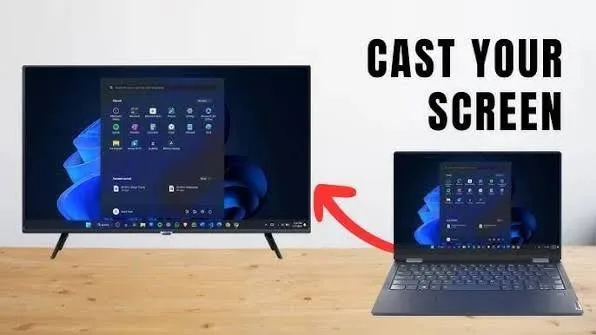
Your laptop does not have to be limited to its built-in display. If you have a compatible television, you can connect the laptop and use the TV as a larger screen for movies, presentations, browsing, gaming and other tasks.
The simplest method is usually an HDMI connection. However, some modern laptops also support wireless display connections or USB-C video output.
Why Connect a Laptop to a TV?
A television can provide a much larger viewing area than a typical laptop screen. This can be useful when several people need to see the same content.
- Watching movies and videos
- Showing photographs to family and friends
- Giving presentations
- Playing supported games
- Viewing documents on a larger screen
- Using the TV as a temporary second display
Method 1: Connect With an HDMI Cable
HDMI is one of the easiest ways to connect a laptop to a television.
First, check whether your laptop has an HDMI port. Then connect one end of the HDMI cable to the laptop and the other end to an available HDMI port on the television.
Next, switch the TV to the corresponding HDMI input. Windows should normally detect the television automatically.
What If Your Laptop Does Not Have HDMI?
Some thin laptops do not include a full-size HDMI port. Instead, they may use USB-C, Mini DisplayPort or another video connection.
In that situation, you may need a compatible adapter or cable.
Importantly, not every USB-C port supports video output. Check your laptop’s specifications before buying an adapter.
How to Choose Between Duplicate and Extend
After connecting the TV, press Windows + P to see the available display modes.
| Mode | What It Does | Useful For |
|---|---|---|
| PC Screen Only | Uses the laptop display | Normal laptop use |
| Duplicate | Shows the same content on both screens | Presentations and demonstrations |
| Extend | Creates additional desktop space | Multitasking |
| Second Screen Only | Uses the TV as the main display | Movies and large-screen viewing |
How to Send Laptop Sound to the TV
When using HDMI, audio can often travel through the same cable as the video signal.
If sound continues coming from the laptop, open Windows sound settings and select the television or HDMI audio device as the output.
The exact name shown can vary depending on the TV, laptop and graphics hardware.
Can You Connect a Laptop Wirelessly to a TV?
Some Windows laptops and smart TVs support wireless display technologies. When compatible devices are connected to the same network or support the required wireless technology, you may be able to project the laptop screen without a physical HDMI cable.
However, wireless display performance can vary. For activities where low latency matters, such as gaming, a wired connection may be preferable.
HDMI vs Wireless Display
| Feature | HDMI | Wireless |
|---|---|---|
| Physical Cable | Required | Not required |
| Setup | Usually simple | Depends on device compatibility |
| Latency | Generally low | Can vary |
| Portability | Requires cable | More convenient when supported |
What Resolution Should You Use?
The ideal resolution depends on what the TV supports. A Full HD television can display 1920 × 1080 content, while many newer TVs support 4K resolutions.
Your laptop also needs to support the desired output resolution and refresh rate through the connection you are using.
If the picture looks blurry, check the Windows display settings and make sure the correct resolution is selected.
Why Does the Picture Look Too Large?
Sometimes Windows may use scaling that makes text and interface elements appear unusually large on a television.
You can adjust the display resolution and scaling settings in Windows. Also check the TV’s picture settings because some televisions apply their own scaling or overscan.
Why Is There No Picture?
If the TV shows “No Signal”, start with the simplest checks.
- Make sure the HDMI cable is properly connected.
- Confirm that the TV is on the correct HDMI input.
- Check whether Windows detects the second display.
- Try pressing Windows + P.
- Test another HDMI port on the TV.
- Try another compatible cable if available.
If the problem continues, check the laptop’s display drivers and connection specifications.
Why Is the TV Picture Flickering?
Flickering can have several causes. The cable, refresh rate, resolution, adapter or graphics driver may be responsible.
Try lowering the refresh rate or selecting a supported resolution. If an adapter is being used, test the connection without it when possible.
Can You Use a TV as Your Only Laptop Screen?
Yes. Windows allows you to use the TV as the only active display by selecting the second-screen-only option.
This can be convenient when watching movies or working from a desk where the laptop remains closed or positioned away from you.
Can a TV Replace a Computer Monitor?
A TV can work well for certain purposes, but it is not always a direct replacement for a monitor.
For example, a television may be excellent for entertainment and casual browsing. However, people who spend many hours reading small text or performing detailed work may prefer a monitor designed specifically for close-range computer use.
What About Gaming?
A TV can be used for gaming when the laptop and television support the required resolution and refresh rate.
Gamers should also consider input latency, refresh rate and adaptive-sync features where relevant. A television designed primarily for movies may not provide the same gaming experience as a suitable gaming monitor.
Using a UK Used Laptop With a TV
A UK used laptop can connect to a TV just like a newer laptop if it has the required compatible output.
Before buying a used system specifically for this purpose, inspect its ports and confirm the maximum supported external-display resolution. Also check that the ports are physically undamaged.
Things You Need
- A laptop with a compatible video output
- A TV with a compatible input
- An HDMI cable or suitable adapter
- Power for the TV
- Compatible display settings
Power Considerations for Nigerian Users
If you regularly use a TV together with your laptop during power interruptions, remember that both devices require electricity.
A suitable UPS, inverter or other backup power solution can help keep the setup running during outages. However, make sure the backup system is properly sized for the combined load.
Related PSERO Guides
- How to Use a Laptop With Two Monitors
- How to Use a Laptop Docking Station
- What Is a Laptop Refresh Rate?
- HD vs Full HD vs 2K vs 4K Explained
- How to Tell If a Laptop Has a Good Display
Shop Laptops at PSERO
Useful Official Resources
For Windows display troubleshooting and projection options, visit Microsoft Support. You can also check the official specifications of laptops from HP, Dell and Lenovo.
Final Verdict
Connecting a laptop to a TV is a simple way to get a much larger display without buying another computer. HDMI is usually the easiest option, while wireless projection can provide more convenience when compatible devices support it.
Before connecting your devices, check the laptop’s ports, the TV’s inputs and the resolutions supported by both. With the right connection and Windows display settings, your laptop can easily become the centre of a larger entertainment or productivity setup.