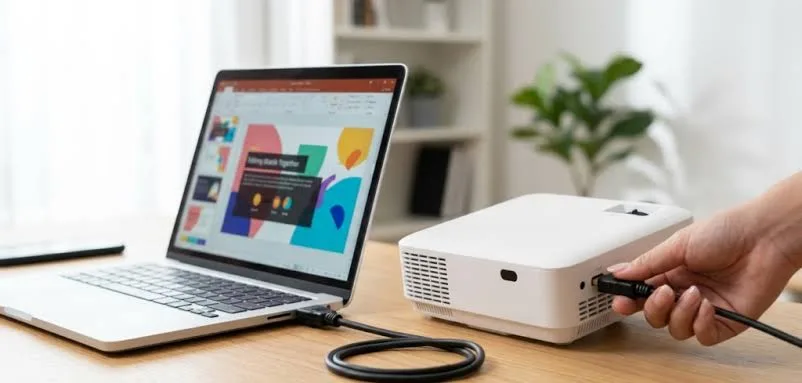
A laptop and projector can be a powerful combination for presentations, lectures, church programmes, business meetings, training sessions and events. Instead of asking several people to crowd around a small laptop screen, you can display your content on a much larger surface.
Fortunately, connecting a laptop to a projector is usually straightforward. The main challenge is choosing the correct connection and making sure the laptop and projector use compatible display settings.

What Is a Projector Used for With a Laptop?
A projector takes the visual output from your laptop and displays it on a larger surface, such as a wall or projection screen.
This makes it useful for:
- Business presentations
- School lectures
- Church programmes
- Training sessions
- Conferences
- Wedding and event presentations
- Movie screenings
- Classroom teaching
How to Connect a Laptop to a Projector With HDMI
HDMI is one of the easiest and most common methods on newer laptops and projectors.
- Turn on the projector.
- Connect the HDMI cable to the laptop.
- Connect the other end to the projector.
- Select the correct HDMI input on the projector.
- Press Windows + P on the laptop.
- Choose the display mode you want.
Once everything is connected correctly, the projector should display the laptop’s output.
What If Your Laptop Uses VGA?
Older business laptops and projectors may use VGA. VGA carries video but does not normally carry audio, so you may need a separate audio connection when sound is required.
If your laptop does not have VGA but the projector does, you may need a suitable adapter. The exact adapter required depends on the laptop’s available output.
What If Your Laptop Has USB-C?
Some modern laptops use USB-C for video output. However, not every USB-C port supports external displays.
Check the laptop’s specifications before purchasing a USB-C-to-HDMI or USB-C-to-DisplayPort adapter.
How to Choose the Display Mode
Windows provides several options when you connect an external display.
| Mode | Purpose |
|---|---|
| PC Screen Only | Uses the laptop display only |
| Duplicate | Shows the same content on the laptop and projector |
| Extend | Creates a separate workspace on the projector |
| Second Screen Only | Uses the projector as the main display |
For most presentations, Duplicate is convenient because you can see the same content on the laptop while the audience sees it on the projector.
Why Is the Projector Showing “No Signal”?
A “No Signal” message does not necessarily mean the laptop is faulty. Several simple connection problems can cause it.
- Check that the cable is firmly connected.
- Confirm that the projector is using the correct input.
- Press Windows + P and select a suitable display mode.
- Try another HDMI or VGA input if available.
- Restart the projector and laptop if necessary.
- Test another compatible cable.
Why Is the Projector Picture Blurry?
A blurry picture can result from incorrect resolution, poor focus or a low-quality cable or adapter.
First, check the projector’s focus controls. Then verify the Windows resolution settings and make sure they are compatible with the projector.
If the projector is designed for a lower resolution than the laptop is outputting, selecting a supported resolution may improve the result.
Why Does the Picture Look Too Small?
The physical size of the projected image depends on the projector’s lens, distance from the screen and zoom capability.
Moving the projector farther away can increase the image size on many models, although the exact behaviour depends on the projector.
How to Get Sound From the Projector
If you are presenting a video or other content containing audio, check how the projector handles sound.
Some projectors have built-in speakers, while others provide an audio output for external speakers.
With HDMI, audio can often travel through the same cable. If you are using VGA, a separate audio connection may be necessary.
Should You Use Duplicate or Extend for a Presentation?
Duplicate is often the simplest choice for beginners. Everything displayed on the laptop appears on the projector.
Extend can be more useful for advanced presentations because you can keep presenter notes or other controls on the laptop while showing only the presentation to the audience.
How to Prepare Your Laptop Before a Presentation
Do not wait until the audience is already seated before testing the equipment.
Instead, connect the laptop to the projector beforehand and test the complete presentation.
- Test the display connection
- Check the projected image
- Test the sound
- Open the presentation
- Check videos and animations
- Confirm that the correct display mode is selected
- Disable unnecessary notifications
- Keep the laptop charged
What About Presentations During Power Outages in Nigeria?
Power reliability is an important consideration when using projectors for events in Nigeria. The laptop, projector and possibly external speakers all require power.
If the event is important, consider having a suitable backup power arrangement. A UPS, inverter or generator may help, depending on the equipment and total power requirement.
Also remember that a projector can consume considerably more power than a laptop, so do not size a backup system based on the laptop alone.
Can a UK Used Laptop Work With a Projector?
Yes. A UK used laptop can work with a projector provided it has a compatible display output.
Older business laptops may have VGA, HDMI or DisplayPort depending on their generation. Before buying, inspect the ports and verify the external-display specifications of the exact model.
What Should You Carry to an Event?
If you regularly give presentations, keeping a small connection kit in your laptop bag can save you from unexpected problems.
- HDMI cable
- USB-C-to-HDMI adapter if required
- VGA adapter for older equipment
- Power charger
- Extension cable where appropriate
- Backup copy of your presentation
Should You Bring a Backup Copy?
Yes. Keep the presentation on a USB flash drive or another accessible backup location.
You can also save important presentation files locally rather than relying entirely on an internet connection at the venue.
Common Laptop-to-Projector Mistakes
- Using the wrong projector input
- Forgetting to select the correct Windows display mode
- Using an incompatible USB-C adapter
- Testing the setup for the first time at the event
- Ignoring audio requirements
- Failing to carry a backup cable
- Relying entirely on an internet connection
Related PSERO Guides
- How to Connect a Laptop to a TV
- How to Use a Laptop With Two Monitors
- How to Use a Laptop Docking Station
- How to Check Laptop Ports Before Buying
- How to Test a Used Laptop Before Buying
Shop Laptops at PSERO
Useful Official Resources
For Windows display and projection guidance, visit Microsoft Support. You can also check the official connectivity specifications for laptops from HP, Dell and Lenovo.
Final Verdict
Connecting a laptop to a projector is usually straightforward once you understand the available ports and Windows display options. HDMI is generally the easiest method on compatible modern equipment, while VGA and adapters remain useful when working with older projectors.
For an important presentation, preparation matters just as much as the connection itself. Test the laptop, projector, sound and presentation before the event, and carry a backup cable or adapter whenever possible.