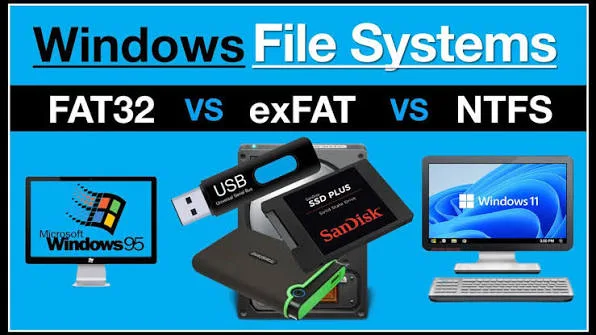
When you format a USB flash drive, external hard drive or memory card, Windows asks you to choose a file system. Many users simply select the default option and continue.
That usually works, but the choice can affect file-size limits, compatibility and how the storage device behaves with different computers and devices.
NTFS, FAT32 and exFAT are three file systems that laptop users are likely to encounter. Understanding their differences can help you choose the right format for your storage device.
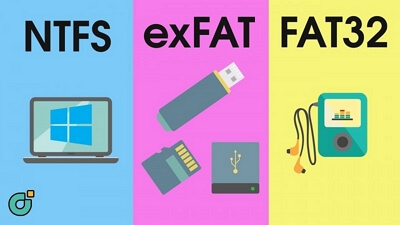
What Is a File System?
A file system is the method an operating system uses to organise and manage data on a storage device.
It determines how files and folders are stored, identified and accessed. Without a suitable file system, an operating system cannot conveniently manage the information on a drive.
Windows supports several file systems, but they are designed for different situations.
What Is NTFS?
NTFS stands for New Technology File System. It is the standard file system commonly used by modern Windows installations for internal drives.
NTFS supports features designed for Windows computers, including file permissions, encryption-related capabilities, compression and large storage volumes.
For a laptop’s main Windows drive, NTFS is normally the appropriate choice.
What Is FAT32?
FAT32 is an older file system that remains popular because of its broad compatibility.
It can be recognised by many computers, cameras, game consoles, televisions and other devices.
However, FAT32 has an important limitation: an individual file cannot be larger than approximately 4 GB.
That restriction can become a problem when transferring large videos, disk images or other modern files.
What Is exFAT?
exFAT was designed to provide a more modern alternative for removable storage.
It avoids the 4 GB individual-file limitation associated with FAT32 while maintaining broad compatibility across many operating systems and devices.
For many external drives and large USB storage devices that need to move between Windows and other platforms, exFAT can be a practical choice.
NTFS vs FAT32 vs exFAT
| Feature | NTFS | FAT32 | exFAT |
|---|---|---|---|
| Common Windows internal-drive use | Excellent | Limited | Less common |
| Maximum individual file size | Very large | About 4 GB | Very large |
| Compatibility with older devices | Moderate | Very broad | Broad |
| Designed for removable storage | Sometimes | Yes | Yes |
| Windows features | Extensive | Basic | More limited |
Why Does FAT32 Still Exist?
FAT32 is old, but its simplicity gives it an advantage: compatibility.
Some older devices may recognise FAT32 but have limited or no support for newer file systems.
For example, if you need a flash drive to work with an older device, FAT32 may be the format that device expects.
The downside becomes obvious when you try to copy a single file larger than 4 GB.
Why Can’t You Copy a 6 GB File to FAT32?
The problem is not necessarily the size of the USB drive.
A 64 GB or 128 GB flash drive can still use FAT32. The restriction concerns the size of an individual file rather than the total capacity of the storage device.
Therefore, a 6 GB video can fail to copy to a FAT32 drive even when the drive has plenty of free space.
Changing the drive to exFAT or NTFS can remove that particular limitation, provided the device you intend to use supports the selected file system.
When Should You Use NTFS?
NTFS is generally suitable when the storage device will mainly be used with Windows computers.
It is particularly appropriate for:
- Windows system drives
- Internal laptop SSDs
- Internal laptop HDDs
- Windows-only external drives
- Drives containing large files
If you are installing Windows on a laptop’s internal drive, NTFS is normally the file system you will encounter.
When Should You Use FAT32?
FAT32 makes sense when compatibility with older hardware is more important than handling very large files.
It can be useful for certain older computers, devices and removable-media situations.
However, remember the individual-file size limitation before choosing it for modern media storage.
When Should You Use exFAT?
exFAT is often useful when you need to move large files between different computers and devices.
It can be a convenient option for external SSDs, large flash drives and other removable storage where compatibility matters but the FAT32 4 GB limit is unacceptable.
For example, a photographer transferring large video files between a Windows laptop and another compatible computer may find exFAT more practical than FAT32.
Does Formatting a Drive Delete Everything?
Formatting normally removes the existing file-system structure and can make the previous files inaccessible.
Therefore, never format a drive containing important information until the data has been backed up or you are certain that it is no longer needed.
This is especially important when troubleshooting an old laptop or external drive. A formatting prompt should not automatically be treated as permission to proceed.
Why Does Windows Ask You to Format a Drive?
You may sometimes connect a storage device and receive a message saying that the drive needs to be formatted before it can be used.
That message does not necessarily mean the drive is empty or safe to format.
The file system may be corrupted, unsupported or unreadable by Windows. If the drive contains important information, stop and investigate before formatting it.
For valuable files, having a proper backup strategy is much safer than relying on recovery after a storage failure.
Does File System Choice Affect SSD Speed?
The file system is only one part of storage performance.
An SSD’s interface, controller, workload and hardware capabilities can have a much greater effect on raw storage performance than simply switching between common file systems.
Therefore, formatting a slow drive as exFAT will not magically turn it into a faster SSD.
When buying a laptop, focus on the underlying storage hardware as well. The PSERO SSD guide explains the differences between SATA SSDs, NVMe drives and different PCIe generations.
Can You Change NTFS to exFAT Without Formatting?
In many normal Windows workflows, changing between file systems requires formatting the drive first.
That means you should back up the contents before proceeding.
Do not select a format option simply because Windows recommends it without first checking what is stored on the drive.
What File System Should You Use for a USB Flash Drive?
The answer depends on how you plan to use the flash drive.
- Windows-only use: NTFS can be suitable.
- Large files and cross-device use: exFAT is often practical.
- Older-device compatibility: FAT32 may be necessary.
Before choosing, consider the devices that will actually read the USB drive.
What File System Should You Use for an External SSD?
For an external SSD used mainly with Windows, NTFS is a straightforward choice.
If the drive regularly moves between different operating systems or devices, exFAT may offer a better balance of compatibility and large-file support.
There is no need to select a file system simply because it is newer. Compatibility with your actual devices matters more.
File Systems and Laptop Backups
External drives are commonly used to back up laptop documents, photos, videos and business files.
Before using a drive as a backup destination, make sure the file system works with the computers and backup tools involved.
Also remember that one external drive is not the same thing as a complete backup strategy. Important information should ideally exist in more than one location.
Common File System Mistakes
- Formatting a drive without checking whether important files are stored on it.
- Choosing FAT32 and later discovering the 4 GB file limit.
- Assuming a larger-capacity FAT32 drive can store larger individual files.
- Using NTFS on a device that cannot properly read it.
- Choosing exFAT without checking compatibility with an older device.
- Assuming formatting improves the physical speed of an SSD.
- Ignoring a Windows formatting warning when important data may still be present.
How to Check a Drive’s File System in Windows
You do not need special software to see the file system.
- Open File Explorer.
- Right-click the drive.
- Select Properties.
- Look for the File system information.
Windows will normally identify the drive as NTFS, FAT32, exFAT or another supported format.
What About Laptop Recovery Partitions?
A laptop’s internal drive can contain more than the main Windows partition.
Recovery, system and boot-related partitions may use configurations that you should not modify casually.
If you are reinstalling Windows or changing partitions, make sure you understand what each partition does before deleting or formatting it.
This is particularly important on used laptops because the recovery environment may contain manufacturer-specific tools.
Final Thoughts
NTFS, FAT32 and exFAT are not simply different names for the same thing. Each file system has strengths and limitations that matter in different situations.
NTFS is closely associated with Windows and is commonly used for internal system drives. FAT32 offers broad compatibility but has a major 4 GB individual-file limitation. exFAT provides large-file support while remaining useful for many removable-storage situations.
Before formatting a USB drive, external SSD or other storage device, think about where the drive will be used and what files you need to store on it.
If you are looking for a laptop with suitable storage for school, business, freelancing or everyday use in Nigeria, visit PSERO LAPTOP to explore available UK-used and brand-new laptops.