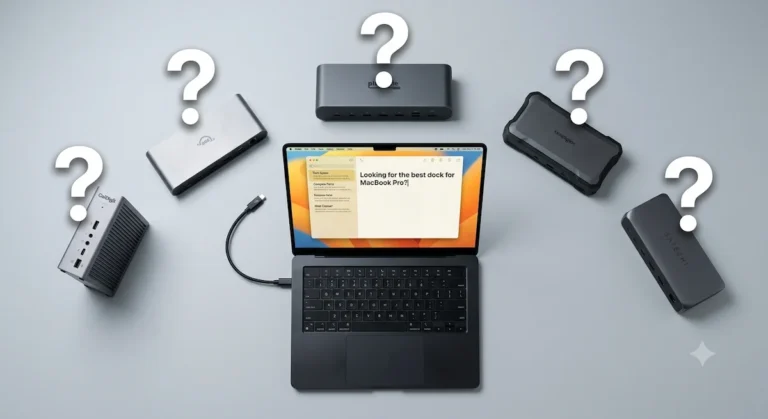
A laptop docking station can transform a portable computer into a complete desktop workstation. With one connection, you may be able to power your laptop, connect external monitors, use a wired network, access USB devices and connect audio equipment.
However, not every docking station delivers the same experience. Two docks may have identical-looking USB-C connectors but completely different capabilities. One might support two external displays, while another may only mirror a single screen. Some provide high-speed data transfer, whereas others share limited bandwidth between connected devices.
Understanding laptop docking station architecture helps you avoid compatibility problems and choose the right equipment. It also explains why certain docks work perfectly with one laptop but fail to deliver their advertised features with another.
1. What Is a Laptop Docking Station?
A docking station is an external connectivity device that expands the ports and capabilities of a laptop. It connects through an interface such as USB-C, Thunderbolt or, on older systems, a proprietary docking connector.
Rather than connecting every accessory separately, you attach the dock to the laptop through one main cable. The dock then distributes data, video, audio and sometimes electrical power to its connected devices.
A typical docking station may provide:
- HDMI and DisplayPort outputs for external monitors.
- USB-A ports for keyboards, mice, printers and storage devices.
- USB-C ports for newer accessories.
- Ethernet for wired networking.
- Audio input and output connections.
- SD and microSD card readers.
- Power delivery for compatible laptops.
The important distinction is that a dock does not automatically create capabilities that the laptop does not support. Its performance depends on the laptop’s internal hardware, connection standard, firmware and the dock’s own controller architecture.
For example, a laptop with a USB-C port that supports data transfer only may not output video through a conventional USB-C docking station. Although the physical connector is present, the required video functionality is missing.
2. Understanding the Main Docking Station Connection Types
The connection between a laptop and a docking station determines how information travels between both devices. Several technologies are used, and they are not interchangeable.
USB-C
USB-C describes the physical connector. It does not independently specify the maximum data speed, display capabilities or charging power.
A USB-C port may support basic USB data transfer, DisplayPort video output, USB Power Delivery or several of these features together. Consequently, checking the port’s actual specification is more important than simply confirming that it has a USB-C shape.
Some laptops include USB-C ports that support charging but not external display output. Other models support video but have limited data-transfer capabilities.
This is why buyers should inspect the laptop manufacturer’s specifications before purchasing a docking station.
USB-C DisplayPort Alt Mode
DisplayPort Alternate Mode, commonly called DisplayPort Alt Mode, allows a compatible USB-C connection to carry DisplayPort video signals.
Normally, USB-C carries USB data through its available high-speed connections. With Alt Mode, some of those connections can instead carry DisplayPort signals.
The dock receives the video signal and routes it to an HDMI or DisplayPort output. This allows a laptop to connect to an external monitor without requiring a separate full-size DisplayPort connector.
However, the number of available high-speed lanes matters. Depending on the implementation, the connection may allocate more lanes to video or reserve some for USB data. That allocation can affect display resolution, refresh rate and peripheral performance.
For technical background, see the official DisplayPort standards information.
Thunderbolt
Thunderbolt combines high-speed data transfer, display connectivity and other communication capabilities over a compatible USB-C connector.
Thunderbolt 3 and Thunderbolt 4 use the USB-C connector. Thunderbolt 5 introduces a higher-bandwidth generation with expanded display and data capabilities.
Unlike a basic USB-C hub, a Thunderbolt dock can support advanced features such as PCIe tunnelling. This allows compatible devices to communicate through a high-speed connection that carries different types of traffic.
Professionals who connect multiple monitors, external storage devices, audio interfaces and other demanding accessories may benefit from this technology.
Nevertheless, a Thunderbolt dock should be matched with a laptop that supports the relevant Thunderbolt generation. The presence of a USB-C connector alone does not prove Thunderbolt compatibility.
Intel provides technical information through its Thunderbolt technology resource.
USB4
USB4 is a modern connection architecture that supports high-speed data transfer and, depending on the implementation, DisplayPort and PCIe tunnelling.
It uses the USB-C connector and has different performance levels. Therefore, two laptops advertising USB4 may not offer identical docking capabilities.
Some USB4 systems provide advanced display connectivity and broad compatibility with Thunderbolt devices. Others have more limited capabilities.
Before purchasing a dock, confirm the supported USB4 version, available bandwidth, display features and power delivery specifications.
The official USB Implementers Forum USB4 information provides additional technical details.
3. How a Docking Station Distributes Data
A docking station acts as a connectivity hub. It receives information through its upstream connection to the laptop and distributes that information to connected devices.
Inside the dock, different controllers manage specific functions. A USB hub controller handles USB peripherals, a network controller manages Ethernet communication, and display-related circuitry routes video signals.
A simplified connection structure looks like this:
- Laptop: Supplies the main data, display and power connections.
- Upstream interface: Connects the laptop to the dock.
- USB controller: Manages connected USB devices.
- Display circuitry: Routes video to external monitors.
- Network controller: Provides wired Ethernet connectivity.
- Audio controller: Handles supported audio input and output.
- Power circuitry: Manages power supplied to the laptop and accessories.
These components work together, but they do not all receive unlimited bandwidth. The total capacity of the laptop-to-dock connection places restrictions on simultaneous activity.
4. DisplayPort MST and Connecting Multiple Monitors
One of the most important docking station technologies is DisplayPort Multi-Stream Transport, commonly called MST.
MST allows a compatible DisplayPort connection to carry multiple independent display streams. A docking station can then distribute those streams to separate monitors.
For example, a compatible laptop and dock may support two external monitors. Each monitor can display a different workspace instead of showing the same image.
This is useful for office work, financial analysis, programming, content production and other activities that benefit from additional screen space.
How MST works
Without MST, a DisplayPort connection may carry one display stream to a monitor. With MST, the source can send multiple streams through a compatible connection.
The dock contains the necessary display-routing hardware to separate the streams and send them to different outputs.
However, MST does not remove the bandwidth limitations of the original connection. The combined resolution and refresh-rate requirements must remain within the available display bandwidth.
For instance, two high-resolution monitors running at high refresh rates require considerably more bandwidth than two standard office monitors.
Why some laptops cannot use two independent monitors
A dock may advertise support for two or three monitors, but that does not guarantee that every connected laptop can use all of them independently.
The laptop’s graphics hardware, display engine, operating system and connection standard determine what is possible.
Some Apple computers, for example, have model-specific restrictions on the number of supported external displays. Windows laptops also differ depending on their graphics hardware and display implementation.
Check the manufacturer’s external display specifications before relying on a particular multi-monitor configuration.
5. Display Bandwidth and Resolution Limitations
External monitor support is not determined by the HDMI or DisplayPort connector alone. The complete signal path must support the required resolution, refresh rate and colour format.
Consider a workstation using two 4K monitors. If both displays operate at 60Hz, the connection must carry significantly more information than a configuration using two Full HD displays.
Several factors influence the available display bandwidth:
- DisplayPort or HDMI version.
- USB-C Alt Mode lane allocation.
- Thunderbolt or USB4 bandwidth.
- Graphics processor capabilities.
- Display Stream Compression support.
- Docking station display controller.
- Monitor resolution and refresh rate.
Display Stream Compression, known as DSC, can reduce the amount of data required to transmit supported display signals while maintaining high visual quality.
However, DSC must be supported by the relevant hardware and software components. A monitor, dock or laptop that lacks the required support may limit the available display configuration.
When purchasing a dock for professional work, check the complete supported monitor configuration rather than relying on a general statement such as dual-display support.
6. USB Hub Controllers and Peripheral Sharing
Most docking stations contain a USB hub controller. This component expands one upstream USB connection into several downstream ports.
For example, a dock may provide four USB-A ports and two USB-C ports. Those connectors allow several accessories to operate through one laptop connection.
However, the ports often share the same upstream bandwidth.
Connecting an external SSD, webcam, printer, keyboard and mouse does not mean that every device receives the full advertised speed independently.
A keyboard uses very little bandwidth. An external SSD transferring large files can consume considerably more. Meanwhile, a high-resolution webcam may require a steady data connection.
Consequently, heavy activity from one device can affect the performance available to other connected accessories.
Users who regularly transfer large files should pay attention to the dock’s USB generation and upstream connection. A dock with many ports is not necessarily a fast dock.
7. Thunderbolt and PCIe Tunnelling
PCIe tunnelling is one of the features that makes advanced Thunderbolt and USB4 docking solutions different from basic USB hubs.
PCI Express is an internal communication standard used by components such as graphics processors, network adapters and storage devices.
Compatible Thunderbolt and USB4 systems can tunnel PCIe traffic through the external connection. This allows supported devices to communicate with the laptop through a high-speed external interface.
Some professional docking stations use this architecture to support high-performance external storage, networking and other demanding peripherals.
However, PCIe tunnelling does not mean that every dock behaves exactly like an internal motherboard expansion slot. Available bandwidth, controller design, compatibility and device support still matter.
For example, an external SSD connected through a Thunderbolt dock may perform differently from the same SSD installed directly inside a laptop.
8. Power Delivery and Laptop Charging Through a Dock
Many modern docking stations can charge a connected laptop through USB Power Delivery.
This feature allows one cable to carry data, display signals and electrical power. It reduces cable clutter and makes it easier to move between a desk and a mobile workspace.
However, charging performance depends on the dock’s power supply, USB Power Delivery capabilities and the laptop’s charging requirements.
Consider a laptop designed to use a 90W charger. A docking station providing only 45W may charge it slowly or struggle to maintain its battery level during demanding workloads.
Some docks also reserve part of their power supply for connected accessories. Therefore, the power advertised for the dock may not always equal the power delivered to the laptop.
Before buying, check:
- The laptop’s required charging wattage.
- The dock’s maximum USB Power Delivery output.
- Whether the dock includes its own power adapter.
- Whether power is shared with connected accessories.
- Whether the laptop supports USB-C charging.
A docking station with a USB-C connector cannot automatically charge every laptop. Some computers require a proprietary charging connection or do not support charging through USB-C.
For more information about laptop charging technology, see our article on USB-C charging, Power Delivery and laptop power management.
9. Ethernet, Audio and Card Reader Architecture
Docking stations often include additional controllers that expand connectivity beyond USB and video.
Ethernet controllers
An Ethernet port allows a laptop to connect to a wired network through the dock. This can be useful in offices where stable network access is important.
Many docks provide Gigabit Ethernet, while some advanced models support faster networking. Actual performance depends on the dock controller, network cable, router or switch and internet connection.
For businesses transferring files across a local network, a wired connection may provide more consistent performance than wireless networking.
Audio controllers
Some docking stations include audio circuitry for headphones, speakers and microphones. This allows compatible audio devices to connect through the dock instead of occupying the laptop’s own audio port.
However, the quality of the audio output depends on the dock’s audio implementation. A basic docking station should not automatically be treated as a professional external sound interface.
Memory card readers
SD and microSD card readers are useful for photographers, videographers and professionals who frequently transfer files from cameras and mobile devices.
Card reader performance depends on its supported standards, the memory card itself and the connection between the dock and laptop.
10. Docking Station Compatibility: Why the Laptop Matters
Compatibility is one of the most misunderstood aspects of docking stations.
A dock may have the correct physical connector but still fail to deliver the expected features. This happens because the laptop and dock must support compatible communication standards.
Before purchasing, investigate these areas:
- USB-C capability: Confirm whether the port supports video, data and charging.
- Thunderbolt support: Verify the exact Thunderbolt generation where applicable.
- USB4 support: Check the supported bandwidth and optional features.
- External display limits: Confirm the number of independent displays supported.
- Operating system: Check whether the dock’s features work with Windows, macOS or Linux.
- Power requirements: Confirm that the dock can supply enough charging power.
- Firmware support: Check for available dock and laptop firmware updates.
These checks are particularly important when purchasing a UK-used laptop. A computer may have an excellent processor and sufficient RAM but lack the port capabilities required for a particular workstation setup.
Our UK-used laptop buying checklist explains other hardware checks worth completing before payment.
11. Common Docking Station Problems and Their Causes
Docking station problems are not always caused by a defective dock. The laptop, cable, display, driver or power supply may be responsible.
External monitors are not detected
This may happen when the laptop does not support video output through its USB-C port. It can also result from an incompatible cable, incorrect display input or outdated graphics driver.
Start by checking whether the laptop supports DisplayPort Alt Mode, Thunderbolt or the relevant USB4 display features. Then test the monitor directly with the laptop where possible.
Only one external monitor works
This problem may indicate an MST limitation, unsupported display configuration or insufficient bandwidth.
Check whether the laptop supports multiple independent external displays. Also confirm whether the dock requires MST and whether the operating system supports the intended arrangement.
USB devices disconnect randomly
Intermittent disconnections may result from insufficient power, a faulty cable, outdated firmware or excessive load on the dock’s USB controller.
Try disconnecting unnecessary accessories and testing each device individually. If the problem disappears, the dock may be struggling with the combined power or bandwidth requirements.
The laptop charges slowly
A dock with insufficient power output may not meet the laptop’s charging requirements. This can become more noticeable when the laptop is running demanding applications.
Compare the dock’s actual power delivery output with the laptop’s recommended adapter rating.
Ethernet is not working
Possible causes include missing drivers, a damaged network cable, incorrect network configuration or a faulty Ethernet controller.
On Windows, open Device Manager and inspect the network adapters section. You can also test the same cable with another computer to narrow down the problem.
Our guide to laptop network problems and DNS, DHCP and IP troubleshooting explains how to investigate related connection issues.
12. How to Check Docking Station and USB-C Capabilities in Windows
Windows provides several tools for identifying connected hardware and investigating compatibility problems.
Use Device Manager
Right-click the Start button and open Device Manager. Inspect the following sections:
- Display adapters.
- Universal Serial Bus controllers.
- Network adapters.
- Sound, video and game controllers.
- Monitors.
These sections can reveal whether Windows detects the dock’s connected devices and controllers.
Check the laptop manufacturer’s specifications
Device Manager does not always identify every optional feature of a USB-C port. Manufacturer documentation is usually more reliable for confirming whether the port supports DisplayPort Alt Mode, Thunderbolt, USB4 or USB Power Delivery.
Look for the exact laptop model and configuration. Two laptops from the same product family may have different port specifications.
Inspect connected displays
Open Settings, select System and then Display. Windows should show detected monitors and provide options for extending or duplicating the desktop.
If the second monitor does not appear, select Detect and confirm that the dock, cable and monitor are properly connected.
Microsoft’s external monitor troubleshooting guidance provides additional steps for diagnosing display connection problems.
13. Choosing a Docking Station for Different Workloads
The best docking station depends on the work being performed. Buying the most expensive model does not guarantee a better experience if its features exceed the laptop’s capabilities.
Office and administrative work
Office users may only need a dock with HDMI, USB ports, Ethernet and adequate charging support. A reliable USB-C dock can be sufficient when the laptop supports the required display output.
Programming and software development
Developers who work with multiple applications may benefit from dual-monitor support, wired networking and several USB ports.
Even so, the laptop’s graphics hardware and display output capabilities must support the desired monitor arrangement.
Video editing and creative work
Creative professionals may require high-speed external storage, high-resolution displays and reliable data connections.
A Thunderbolt or capable USB4 dock can be useful for these workloads, provided the laptop supports the necessary features.
Business and workstation environments
Companies that issue laptops to employees may prefer docking stations with Ethernet, multiple display outputs, power delivery and manageable firmware support.
A consistent docking setup can simplify desk installation and reduce the number of separate cables employees need to connect.
14. What to Consider When Buying a Dock for a UK-Used Laptop in Nigeria
When buying a UK-used laptop, pay attention to its connectivity specifications before selecting accessories.
Some older business laptops include USB-C ports that support data transfer and charging but have different display capabilities. Other models support Thunderbolt, making them more suitable for advanced docking arrangements.
Do not assume that every HP EliteBook, Dell Latitude or Lenovo ThinkPad has identical docking support. Specifications vary by model and configuration.
Before paying for a dock, follow these checks:
- Identify the laptop’s exact model number.
- Confirm the capabilities of its USB-C or Thunderbolt port.
- Check the maximum number of supported external monitors.
- Verify the supported resolution and refresh rates.
- Compare the dock’s power output with the laptop’s requirements.
- Inspect the cable and power adapter for damage.
- Confirm that the dock supports your operating system.
- Test the complete arrangement before relying on it for daily work.
Power stability also matters. A docking station with several connected devices may add to the equipment used at a workstation. Consider suitable electrical protection, especially where voltage fluctuations or power interruptions are common.
Our article on protecting laptops from power outages and voltage fluctuations in Nigeria covers practical ways to reduce electrical risks.
At PSERO LAPTOP, customers looking for a laptop for office work, programming, remote work or professional applications can explore available options at PSERO LAPTOP. Check the specifications of the exact model before choosing a docking station or other accessories.
15. Frequently Asked Questions About Laptop Docking Stations
Can any laptop use a USB-C docking station?
No. A laptop needs to support the features required by the dock. Some USB-C ports support only data transfer, while others support video output, charging and advanced connectivity.
Can a docking station support two monitors?
Yes, but the laptop and dock must both support the required display configuration. MST, Thunderbolt and USB4 can provide different methods of handling multiple displays.
Is Thunderbolt better than ordinary USB-C?
Thunderbolt generally provides more advanced high-speed connectivity features than basic USB-C implementations. However, the best option depends on the laptop, dock and intended workload.
Does a docking station improve laptop performance?
A conventional dock does not automatically increase CPU or GPU performance. Instead, it expands connectivity and makes it easier to use external monitors, storage devices and other peripherals.
Can a docking station damage a laptop?
A properly designed and compatible docking station should operate within the supported electrical and communication standards. Using reputable equipment and compatible power supplies reduces the risk of connection and charging problems.
Can I leave my laptop connected to a docking station?
Yes, provided the dock and laptop are designed for regular connected operation. Follow the manufacturer’s charging recommendations and avoid excessive heat around the laptop and dock.
Does every Thunderbolt dock work with USB-C laptops?
No. Some Thunderbolt docks offer limited USB-C compatibility, while advanced functions may require Thunderbolt support. Always check the dock manufacturer’s compatibility documentation.
Conclusion
A laptop docking station is more than a collection of extra ports. It combines several technologies, including USB hub controllers, DisplayPort routing, Ethernet, audio, power delivery and, in advanced models, Thunderbolt or USB4 connectivity.
Understanding these technologies makes it easier to choose a dock that matches your laptop and workload. It also helps explain why a dock may charge a computer but fail to display video, or why two external monitors may not work independently.
For anyone buying a laptop for professional use, connectivity should be part of the purchasing decision. A computer with the right processor, memory and storage is valuable, but the correct port capabilities can make a major difference when building a complete workstation.
Before buying a docking station, verify the laptop’s exact specifications, display support, power requirements and compatibility. That simple process can prevent unnecessary spending and help you build a more reliable workstation.