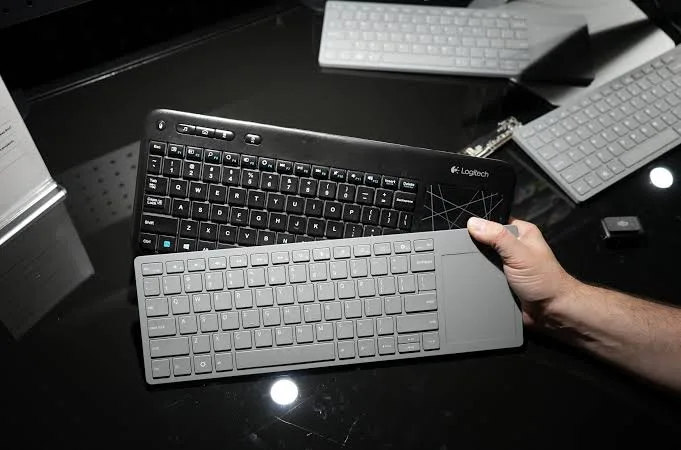
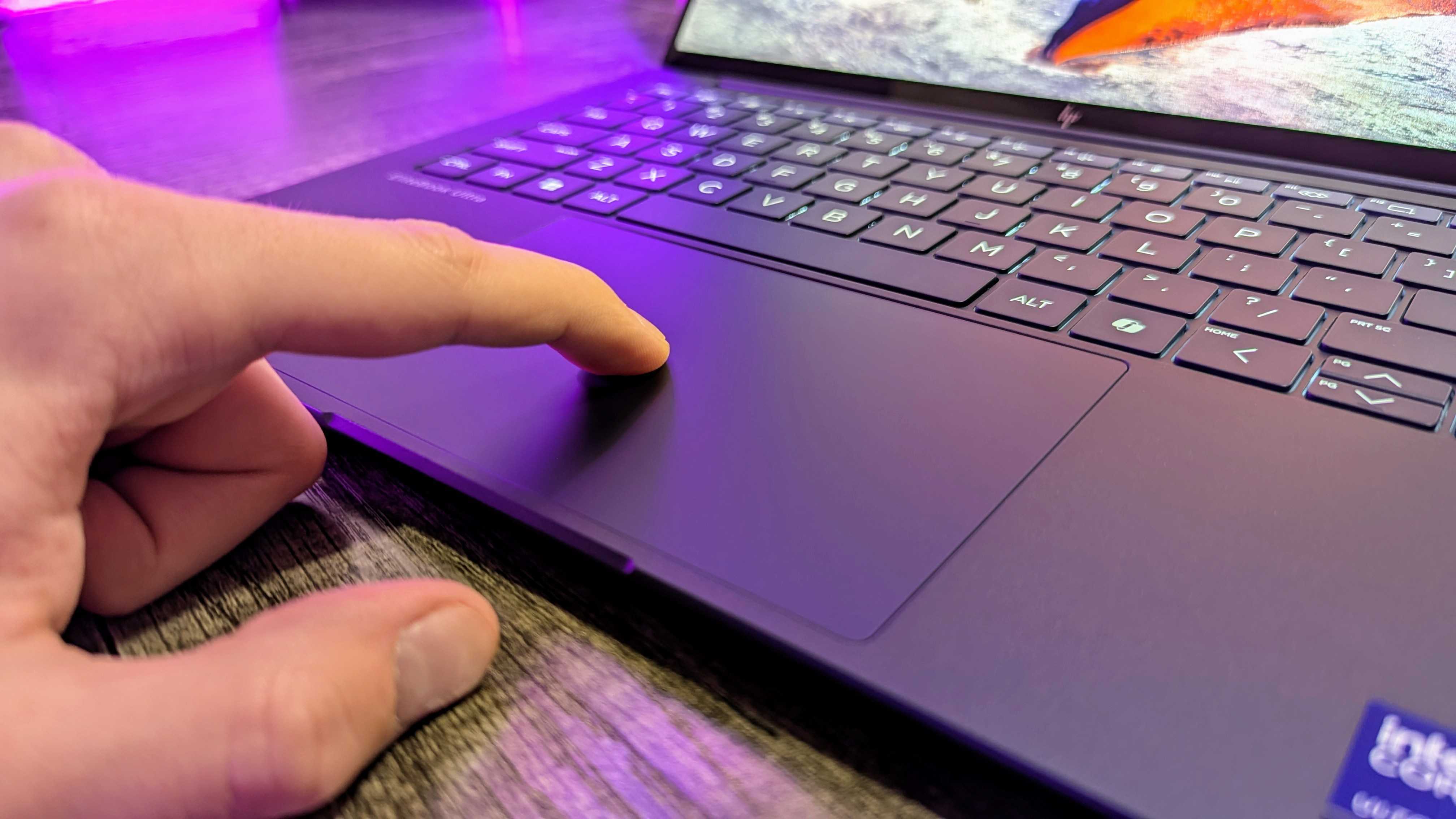
A laptop keyboard and touchpad may look like simple input devices, but both depend on several layers of hardware and software to function correctly. Every keystroke, pointer movement, scroll gesture and touch command must be detected, processed and delivered to the operating system.
Behind the keyboard are electrical circuits, scanning techniques and controller firmware. The touchpad has its own sensing technology, communication interface and gesture-processing system. These components work together to make laptop interaction feel immediate and responsive.
Understanding laptop keyboard and touchpad architecture is useful when diagnosing unresponsive keys, accidental typing, delayed pointer movement, ghost inputs and hardware faults. It also helps buyers evaluate the condition of a UK-used laptop before making payment.
1. How a Laptop Keyboard Works
A laptop keyboard is an electrical input system. Pressing a key changes the electrical state of a circuit, allowing the keyboard controller to identify which key was activated.
Unlike a traditional desktop keyboard, most laptop keyboards are built directly into the computer’s chassis. Their compact design requires a thin arrangement of switches, conductive layers, flexible cables and supporting electronics.
A typical laptop keyboard contains:
- Keycaps that provide the surfaces users press.
- Scissor mechanisms or other low-profile key structures.
- Membrane layers containing conductive contacts.
- Electrical traces that connect individual key positions.
- A flexible ribbon cable that connects the keyboard to the motherboard.
- Controller circuitry that identifies key presses.
When a key is pressed, the mechanism pushes conductive contacts together. The resulting electrical change is detected by the keyboard scanning circuit.
The controller then identifies the key position and communicates the corresponding input information to the computer.
2. Keyboard Matrix Scanning Architecture
Most laptop keyboards use a matrix scanning arrangement. Rather than assigning a separate electrical connection to every key, the keyboard organises switches into rows and columns.
This approach reduces the number of electrical connections required, which is important in thin laptops with limited internal space.
Imagine a keyboard containing several rows and columns. Each key occupies a specific intersection. When the controller activates a row and checks the columns, it can identify which switch has completed the electrical connection.
How matrix scanning identifies a key
The scanning controller repeatedly checks the keyboard matrix. It activates selected rows and reads the corresponding column signals.
For example, pressing the letter A changes the electrical state at a particular row-and-column intersection. The controller detects that change and identifies the corresponding key position.
This process happens extremely quickly, allowing the computer to register typing without noticeable delays.
Matrix scanning also allows many keys to share a relatively small number of electrical connections. That makes the design more practical for compact laptop keyboards.
Keyboard ghosting
Ghosting occurs when certain combinations of pressed keys cause the keyboard to register an additional key that was never physically pressed.
This can happen because of the electrical arrangement of the keyboard matrix. Without suitable isolation, multiple simultaneous connections may create ambiguous signals.
Some keyboards use diodes or alternative circuit designs to reduce this problem. However, laptop keyboards vary in their ability to recognise multiple simultaneous key presses.
For ordinary typing, this may not be noticeable. Gamers and users who rely on complex keyboard shortcuts may care more about simultaneous key recognition.
3. Keyboard Debouncing and Why It Matters
Mechanical contact does not always produce one clean electrical transition. When a key is pressed, its contacts may briefly open and close several times before settling.
This behaviour is known as switch bounce.
Without filtering, the computer could interpret one physical press as several separate keystrokes. Keyboard controllers therefore use a technique called debouncing.
Debouncing involves checking whether a detected key state remains stable for a short period before accepting it as a valid input.
The controller may also apply filtering when a key is released. This helps prevent accidental repeated characters or inconsistent key recognition.
Debouncing is especially important in compact keyboards because their switches must operate reliably despite frequent use, dust exposure and normal mechanical wear.
4. The Role of the Embedded Controller
The embedded controller, or EC, is a small microcontroller found on many laptop motherboards. It manages several low-level hardware functions, including keyboard input, power-button signals, battery communication and thermal-related controls.
Depending on the laptop design, the keyboard matrix may connect directly to the embedded controller or communicate through another keyboard controller arrangement.
The EC helps process hardware-level events before they reach the operating system.
Its responsibilities may include:
- Scanning or receiving keyboard input.
- Detecting power-button presses.
- Managing certain keyboard backlight functions.
- Monitoring battery-related signals.
- Controlling selected fan and thermal functions.
- Managing laptop power-state transitions.
- Communicating with other motherboard controllers.
Because the embedded controller handles several functions, a fault in this component can produce symptoms that appear unrelated.
For instance, a laptop may experience keyboard problems alongside unusual power-button behaviour. Such symptoms do not automatically prove that the EC is defective, but they can help technicians narrow down the investigation.
Our article on laptop motherboard architecture and embedded controller functions explains how these controllers interact with other motherboard components.
5. How Laptop Keyboards Communicate With Windows
Detecting a physical key press is only the first stage. The computer must also communicate that information to the operating system.
Many keyboards use the Human Interface Device standard, commonly called HID. This standard defines how input devices describe and deliver information to compatible operating systems.
When the controller detects a key press, the input information travels through the relevant hardware interface. Windows receives the event and processes it through its keyboard input system.
The operating system then interprets the input according to the active keyboard layout, language settings and application context.
For example, the same physical key position may produce different characters under different keyboard layouts. A user who switches between English layouts may notice changes in punctuation or symbol positions.
Our guide to Windows keyboard layouts and language settings explains why this happens and how to correct it.
6. Laptop Keyboard Ribbon Cables and Internal Connections
Most internal laptop keyboards connect to the motherboard through a flexible printed cable, often called an FFC or FPC cable.
These cables are thin and designed to fit into restricted spaces. They carry electrical signals between the keyboard assembly and the relevant motherboard connector.
The cable usually connects through a small locking connector. A retaining mechanism holds it in place and maintains reliable electrical contact.
Several problems can affect this connection:
- Improperly seated ribbon cables.
- Damaged connector locking tabs.
- Corrosion caused by liquid exposure.
- Torn or folded cable traces.
- Contamination around the connector.
- Damage caused during previous repairs.
A loose ribbon cable can make an entire keyboard stop responding. In other cases, only a group of keys may fail because some signal paths are damaged.
Technicians should inspect these connections carefully before replacing the complete keyboard assembly. Opening a laptop requires the correct service procedure, especially where the battery and fragile internal connectors are involved.
7. How Laptop Touchpads Detect Finger Movement
A laptop touchpad uses a sensing surface to detect finger contact and movement. Most modern laptop touchpads rely on capacitive sensing technology.
Capacitive touchpads detect changes in electrical capacitance caused by a finger approaching or touching the surface.
Under the touchpad surface are sensing electrodes arranged in a grid. Their electrical characteristics change when a conductive object, such as a finger, comes close.
The controller measures these changes and estimates the position of the finger.
By repeatedly measuring the position, the touchpad can track movement across its surface. The operating system then converts that movement into pointer movement on the screen.
Mutual-capacitance sensing
Many modern touch systems use mutual-capacitance sensing. In this arrangement, transmitting and receiving electrodes form a grid.
The controller sends electrical signals through selected electrodes and measures how the signals are received. A finger changes the coupling between the electrodes, allowing the system to detect touch.
This technique can support accurate multi-touch detection, which is important for gestures involving two or more fingers.
Touchpad sensitivity and accuracy
Touchpad accuracy depends on several factors, including electrode design, controller quality, surface materials, firmware and signal processing.
A well-designed touchpad should recognise finger movement consistently without producing excessive pointer jumps or missed gestures.
Environmental conditions can also affect performance. Moisture, dirt, damaged surfaces and electrical interference may cause unusual behaviour.
8. I2C and HID Over I2C Communication
Modern laptop touchpads often communicate with the motherboard through an I2C interface.
I2C, pronounced eye-squared-see, is a serial communication protocol used to connect integrated circuits. It uses a small number of signal lines, making it suitable for compact electronic devices.
In a typical touchpad implementation, the touch controller communicates with the host system through I2C. The controller sends information about finger positions, contact areas and gestures.
Some Windows-compatible touchpads use HID over I2C. This combines the Human Interface Device model with the I2C communication interface.
The arrangement allows Windows to identify and communicate with compatible touchpads through a standardised input framework.
When the required driver or device configuration is missing, the touchpad may appear incorrectly in Device Manager or fail to respond.
Microsoft provides technical documentation about HID through its Windows HID driver documentation.

9. Precision Touchpads and Gesture Processing
Windows Precision Touchpads use a defined hardware and software approach to provide consistent touchpad behaviour.
Rather than relying entirely on individual manufacturer utilities, compatible devices expose standardised touch information to Windows.
This allows the operating system to manage common gestures and pointer behaviour more consistently across supported laptops.
Typical Precision Touchpad gestures include:
- One-finger movement to control the pointer.
- Two-finger scrolling through documents and webpages.
- Two-finger pinching to zoom in or out.
- Three-finger swipes to switch between applications or desktops.
- Four-finger gestures for supported workspace controls.
The exact available gestures depend on the hardware, Windows version and configuration.
Windows also provides settings for adjusting pointer speed, touchpad sensitivity, scrolling direction and gesture behaviour.
Microsoft’s touchpad gesture guidance explains how supported gestures work.
10. Keyboard Backlighting and Its Control Circuit
Some laptop keyboards include LED backlighting beneath the keycaps. This illumination makes the keys easier to identify in dim environments.
Backlit keyboards generally use small LEDs arranged beneath or around the keyboard keys. Light passes through specially designed keycap markings or openings.
The lighting system may be controlled by the embedded controller or another dedicated circuit.
Depending on the laptop, users may be able to adjust brightness through a function-key combination or manufacturer software.
Some advanced keyboards support multiple brightness levels or individual lighting zones. Most business laptops use simpler single-colour backlighting.
Backlight failure does not necessarily mean the keyboard itself is defective. Possible causes include damaged LED connections, control-circuit problems, firmware settings or a faulty keyboard assembly.
11. Why Laptop Keyboards and Touchpads Sometimes Stop Working
Input problems can originate from hardware, firmware, drivers or operating-system settings. Correct diagnosis requires separating these possibilities instead of immediately replacing the affected component.
Some keyboard keys do not respond
When only a few keys fail, the cause may be local damage to the keyboard membrane, worn contacts or a damaged matrix connection.
Liquid exposure is another possibility. Even small spills can leave residue that interferes with electrical contacts.
The entire keyboard stops working
A complete keyboard failure may indicate a disconnected ribbon cable, controller fault, firmware issue or damaged keyboard assembly.
Testing with an external USB keyboard can help determine whether Windows still accepts keyboard input.
Keyboard types repeated characters
Repeated characters can result from a physically stuck key, electrical contact problems or keyboard repeat settings.
Windows allows users to adjust keyboard repeat delay and repeat rate through its keyboard settings.
Touchpad movement becomes erratic
Unexpected pointer movement may be caused by moisture, dirt, damaged sensing surfaces or an unstable touch controller.
In some cases, the problem is software-related. Incorrect sensitivity settings or outdated drivers can also affect pointer behaviour.
Touchpad gestures stop working
Basic pointer movement may continue even when advanced gestures fail. This can happen when the appropriate Precision Touchpad driver or configuration is missing.
Check Windows touchpad settings and Device Manager before concluding that the hardware has failed.
12. How to Diagnose Keyboard and Touchpad Problems in Windows
Windows includes several tools that can help identify input-device problems.
Check Device Manager
Right-click the Start button and open Device Manager. Inspect the following categories:
- Keyboards.
- Human Interface Devices.
- Mice and other pointing devices.
- Universal Serial Bus controllers.
Look for warning symbols, missing devices or entries that appear after connecting an external keyboard or mouse.
Device Manager can help identify driver-related problems, although it cannot always distinguish a failed internal component from a physical connection fault.
Test with an external keyboard
Connect a working USB keyboard and test typing in a basic text editor.
If the external keyboard works normally while the internal keyboard remains unresponsive, the problem may be limited to the internal keyboard, its cable or its controller connection.
Test the touchpad settings
Open Settings, select Bluetooth and devices, then choose Touchpad.
Confirm that the touchpad is enabled. Adjust the sensitivity and pointer settings if necessary.
Check keyboard behaviour outside Windows
Where supported, testing the keyboard in the BIOS or UEFI environment can help separate operating-system problems from hardware problems.
If the keyboard also fails outside Windows, a hardware or firmware issue becomes more likely. However, not every BIOS interface supports keyboard testing in the same way.
Our guide to laptop BIOS and UEFI architecture explains how to access and understand firmware-level settings.
13. Replacing a Laptop Keyboard or Touchpad
Replacing an internal input device is not always a straightforward process. Some laptops use separate keyboard and touchpad assemblies, while others integrate components into the palm-rest structure.
Keyboard replacement can require removing the bottom cover, disconnecting the battery and releasing the keyboard ribbon cable. Certain models require extensive disassembly because the keyboard is attached to the upper chassis.
Touchpad replacement may involve removing the palm rest, disconnecting a small ribbon cable and transferring supporting brackets or buttons.
Before purchasing replacement parts, verify:
- The exact laptop model and generation.
- The keyboard layout and language.
- The part number and connector arrangement.
- Whether the keyboard includes backlighting.
- Whether the touchpad supports the required features.
- Whether the replacement assembly is compatible with the chassis.
Two laptops may look almost identical but use different keyboard assemblies or touchpad connectors.
For technicians, the manufacturer’s service manual is often the most reliable reference for part identification and disassembly procedures.
14. What to Check When Buying a UK-Used Laptop in Nigeria
Keyboard and touchpad condition deserves attention when buying a used laptop. These components experience frequent physical contact, so wear can reveal how well the computer has been maintained.
Do not limit your inspection to opening a document and typing a few words. A proper check should cover every major key and common touchpad gesture.
Use this inspection process:
- Test every letter and number key.
- Check the function keys and special controls.
- Test Enter, Backspace, Shift, Ctrl and Alt.
- Confirm that the spacebar registers consistently.
- Inspect the keyboard for missing or damaged keycaps.
- Check whether the backlight works, if fitted.
- Move the pointer across the entire touchpad surface.
- Test left-click and right-click functions.
- Try two-finger scrolling and pinch-to-zoom.
- Check for accidental pointer movement or delayed response.
Pay attention to unusual signs such as sticky keys, inconsistent clicks, shiny worn surfaces and missing gestures.
Liquid damage can affect more than the keyboard. Corrosion may spread to nearby motherboard connectors and other internal components.
For this reason, inspect the laptop carefully and review the broader checks in our UK-used laptop buying checklist for Nigeria.
Customers exploring business laptops, student systems and professional computers can also browse PSERO LAPTOP and compare available specifications before making a purchase.
15. Frequently Asked Questions About Laptop Keyboards and Touchpads
Why does a laptop keyboard use a matrix instead of separate wires for every key?
A matrix reduces the number of electrical connections required. By arranging keys into rows and columns, the controller can identify many switches using a smaller number of signal lines.
What is keyboard ghosting?
Keyboard ghosting occurs when certain combinations of pressed keys cause the system to register an additional key that was not physically pressed. The problem is related to the electrical design of the keyboard matrix.
What is the embedded controller in a laptop?
The embedded controller is a small microcontroller responsible for managing selected low-level hardware functions. Depending on the laptop, these may include keyboard input, power-button signals, battery communication and thermal controls.
How does a laptop touchpad detect fingers?
Most modern touchpads use capacitive sensing. Their internal electrodes detect changes in electrical capacitance caused by a finger touching or approaching the surface.
What does HID over I2C mean?
HID over I2C combines the Human Interface Device standard with the I2C communication protocol. It allows compatible input devices, including some laptop touchpads, to communicate with the operating system.
Can a laptop work without its internal keyboard?
Yes. A compatible external USB or wireless keyboard can provide input even when the internal keyboard is defective. However, certain firmware operations may still require the internal keyboard or a supported external device.
Why does my touchpad move the pointer but not support gestures?
Basic pointer movement may work even when advanced gesture support is unavailable. The issue could involve driver compatibility, Windows settings or limitations in the touchpad hardware.
Conclusion
Laptop keyboards and touchpads rely on sophisticated input systems that combine electrical sensing, controllers, firmware and operating-system communication. Keyboard matrix scanning identifies individual key presses, while capacitive touchpads track finger movement and support multi-touch gestures.
The embedded controller and HID communication framework help connect these physical components to the software environment. When one part of this system fails, the symptoms may include missing keys, repeated characters, unresponsive gestures or inconsistent pointer movement.
Understanding the architecture makes troubleshooting more accurate and helps technicians avoid unnecessary component replacements. It also gives laptop buyers a better way to assess input-device condition before purchasing a used computer.
For anyone selecting a laptop for daily business, study or professional work, a responsive keyboard and reliable touchpad are just as important as the processor, memory and storage.